




Printing your photos should be straightforward, but it’s common for the final result to look different than expected. Images that look bright and sharp on your phone can come out darker, softer, or slightly off in color once they’re printed.
The difference comes down to how digital images translate into photo prints. Small details—like resolution, lighting, and finish—can completely change the outcome. Knowing what to watch for ahead of time makes it much easier to get prints that look as good as they should.
Common Photo Printing Mistakes to Avoid
1. Using Low-Resolution Photos
What happens:
Your print looks soft, blurry, or pixelated, especially at larger sizes.
Why it matters:
Phones and social platforms often compress images, which reduces the amount of detail available for printing. A photo that looks sharp on a small screen can lose clarity when it’s enlarged.
How to fix it:
Use the highest-resolution version of your photo whenever possible. As a general rule, smaller prints like 4×6 are more forgiving, while larger sizes like 8×10 or above require more detail to stay sharp. If your image isn’t very crisp to begin with, sticking to a smaller print size will give you a noticeably better result.
2. Choosing the Wrong Print Size for Your Photo
What happens:
Your image looks cropped in unexpected ways or feels off-center.
Why it matters:
Photos don’t all share the same proportions. For example, most phone photos are closer to a 4:3 ratio, while standard prints like 4×6 use a 3:2 ratio. That mismatch often leads to automatic cropping.
How to fix it:
Before printing, preview how your image fits the selected size and adjust the crop manually. If the composition feels tight, consider choosing a size that better matches your photo or repositioning the image so the most important details stay in frame.
3. Printing Photos That Are Too Dark
What happens:
Shadows lose detail, and the entire image looks darker than it did on your screen.
Why it matters:
Screens are backlit, which makes images appear brighter and more vibrant. Prints rely on reflected light, so darker areas can become even more muted on paper.
How to fix it:
Slightly increase brightness and lift shadows before printing. You don’t need to over-edit—just aim for a balanced image where details are still visible in darker areas. If a photo already looks a bit dim on your screen, it will almost always print darker.
4. Choosing the Wrong Print Finish
What happens:
Your photo may look overly shiny, show glare, or feel less vibrant than expected.
Why it matters:
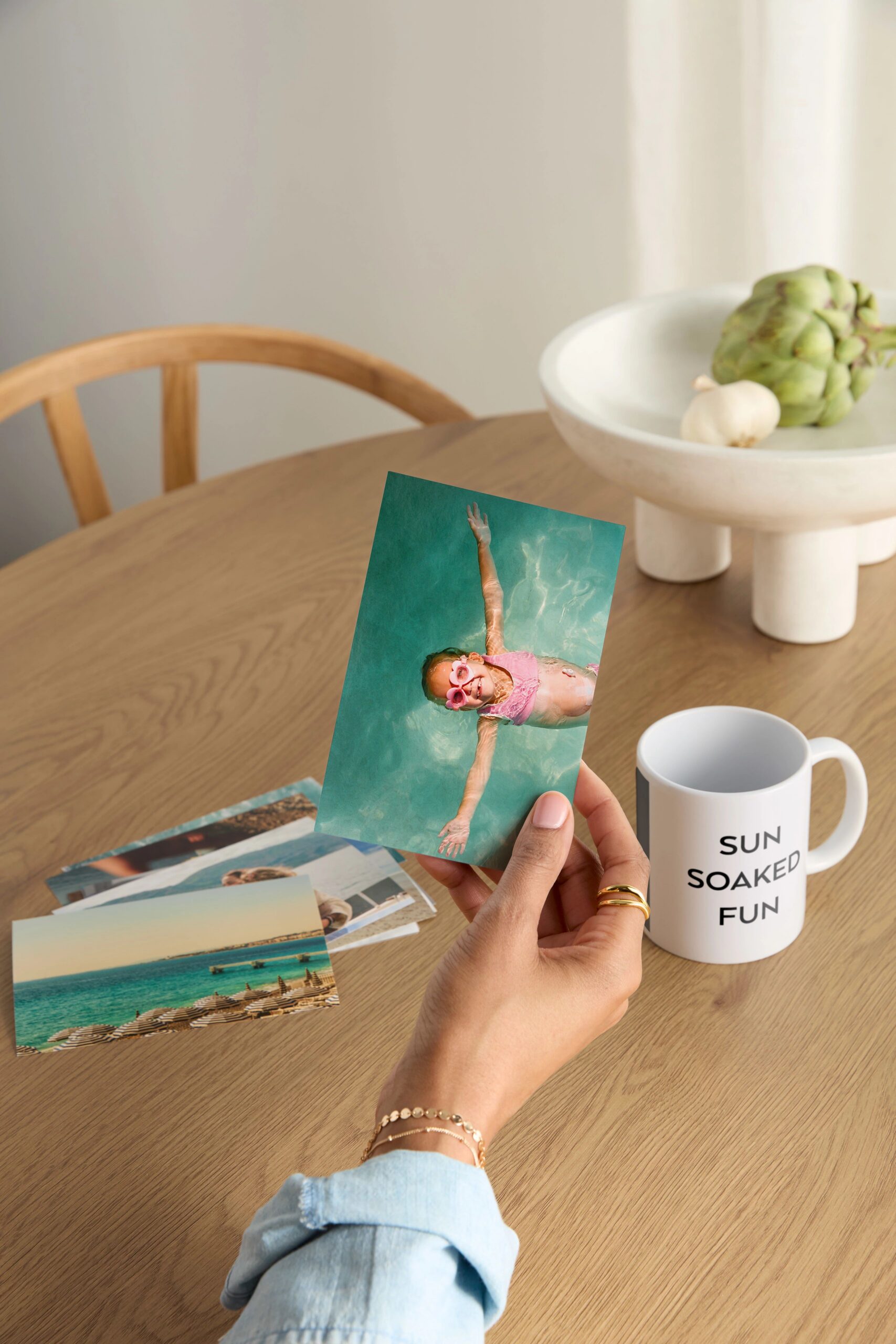
Finish changes how color and detail are perceived. The same image can look noticeably different depending on whether it’s printed on glossy or matte paper.
How to fix it:
Use glossy prints for photos with strong color, contrast, and detail—like travel shots or bright outdoor images. Glossy enhances vibrancy and sharpness but can reflect light. Matte prints are better for softer images, portraits, or anything you’ll handle frequently, since they reduce glare and show fewer fingerprints.
5. Not Reviewing Your Crop Before Printing
What happens:
Faces, edges, or key parts of your photo are cut off.
Why it matters:
Auto-cropping is designed to fit your image into a print size, but it doesn’t know what matters most in your photo.
How to fix it:
Always preview your crop before ordering. Make sure faces, hands, and focal points have enough space around them. If something feels too tight, zoom out or reposition the image slightly so the composition feels balanced.
6. Expecting Colors to Look Exactly the Same as Your Screen
What happens:
Colors in your print look slightly different—sometimes warmer, cooler, or less saturated.
Why it matters:
Every screen displays color differently, and printed materials don’t emit light the same way digital screens do. Small shifts are normal, especially with highly saturated or heavily edited images.
How to fix it:
Edit with natural, balanced tones rather than pushing saturation too far. If a color looks extremely bright or intense on your screen, it may not translate the same way in print. Subtle adjustments tend to produce more consistent results.
7. Skipping Simple Edits Before Printing
What happens:
Your photo looks slightly flat, uneven, or less polished than it could be.
Why it matters:
Even well-composed photos can benefit from small adjustments. Minor edits can improve clarity, correct alignment, and bring out details that might otherwise be lost in print.
How to fix it:
Take a moment to make quick adjustments before ordering. Straighten the image if needed, fine-tune brightness and contrast, and apply a light enhancement if it improves the overall look. Even small changes can make a noticeable difference once your photo is printed.
How to Get Better Results When Printing Photos
Good photo prints come down to a few consistent habits. Start with a clear, well-lit image, choose a print size that matches your photo, and preview your crop before placing your order. From there, selecting the right finish and making small adjustments can elevate the final result.
You don’t need advanced tools or heavy editing—just a careful approach to how your photo will look once it’s off a screen and on paper.
Learn More About Photo Prints
Looking to go further? Learn more about photo print sizes, finishes, and creative ways to use your prints to get the best results for every photo.
Additional Resources:
