


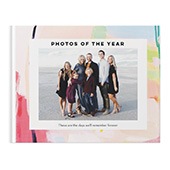





If your favorite memories live in Google Photos, turning them into a printed photo book is easier than you might think. Whether you want to document a family vacation, celebrate a milestone, or finally organize years of snapshots, you can quickly upload your Google Photos and transform them into a custom photo book.
The best part? You don’t need to download each image individually. You can connect your account and select photos directly inside Shutterfly — on desktop or in the mobile app.
Below, we’ll walk you through exactly how to upload your photos and start creating.

Can You Make a Photo Book from Google Photos?
Yes. You can connect your Google Photos account to Shutterfly and upload up to 1,000 photos at a time on desktop. Once uploaded, your images will appear in your Shutterfly photo library, where you can organize them into albums or use them in any project — including photo books.
On mobile, you can also access Google Photos directly inside the photo book builder after connecting your account.
How to Upload Photos from Google Photos (Desktop)
If you’re using a computer, follow these simple steps:
Step 1: Sign In to Your Shutterfly Account
Log in to your Shutterfly account from your desktop browser.
Step 2: Click “Photos”
In the top-right corner of the screen, click Photos to open your photo library.
Step 3: Select the Orange “Upload” Button
In the top-right corner of the Photos page, click the orange Upload button.
Step 4: Choose “Google Photos”
From the upload options, select Google Photos.
Step 5: Sign in With Google
You’ll be prompted to sign in to your Google account and authorize access. Shutterfly can only access and store the photos you select, and we will never post on your behalf.
Step 6: Select Your Photos
Choose the images you want to upload from your Google Photos library. You can select up to 1,000 photos in one session.
Step 7: Click “Done”
Click Done, and your selected images will upload to your Shutterfly account.
Once uploaded, you can:
- View them in your photo timeline
- Add them to a Shutterfly album for organization
- Use them in any project, including photo books
How to Upload Google Photos in the Shutterfly App (iPhone & Android)
If you’re creating on your phone, the process is just as simple.
Step 1: Download and Log In to the Shutterfly App
Open the Shutterfly app and sign in.
Step 2: Tap “Photos”
At the bottom center of the screen, tap Photos.
Step 3: Tap the Orange “Upload” Button
In the top-right corner, tap Upload.
Step 4: Connect Google Photos
Go to Settings (top-right corner), then toggle Google Photos: Connect to access Google Photos.
Step 5: Sign in and Authorize
Sign in to your Google account and allow access.
You may need the Google Photos app installed on your device for a smooth connection.
Adding Google Photos While Creating a Photo Book (Mobile)
Once your account is connected:
- Start a new Photo Book project.
- When prompted to select photos, look for the source dropdown menu.
- The default selection will be your Shutterfly library.
- Tap the dropdown and select Google Photos.
- Choose your images and continue designing your book.
You can switch between sources — including Local Photos (your device), Facebook, Amazon Photos, and your Shutterfly library — at any time while building your project.
Do You Have to Save Google Photos to Your Device First?
No. You don’t need to save each photo to your computer or camera roll before creating your book.
After connecting your Google account, you can select images directly from Google Photos — even if the app briefly opens during the process — and add them straight into your Shutterfly project.
Tips for Creating a Photo Book from Google Photos
Once your photos are uploaded, a little organization goes a long way.
- Upload by album to keep events grouped together.
- Organize chronologically for vacation or year-in-review books.
- Choose a theme (birthday, wedding, baby, travel) before designing.
- Add captions or dates to give context to your memories.
- Review image quality to ensure your photos look crisp in print.
After selecting your photos, choose your preferred book size and style, customize layouts, add text or embellishments, and preview your design before ordering.

Turn Your Digital Memories into Something You Can Hold
Google Photos is a wonderful place to store your moments — but there’s something special about seeing them in print. A custom photo book lets you relive vacations, celebrations, and everyday milestones in a way that feels personal and lasting.
Whether you’re creating on desktop or mobile, connecting your Google Photos account makes the process simple. In just a few steps, you can upload your favorite images, design your book, and bring your memories to life on every page.
Ready to get started? Sign in, connect your photos, and start creating your next photo book today.
Additional Resources:
- How to Make a Photo Book
- How to Upload Photos to Shutterfly
- Photo Books vs. Photo Albums: What’s the Difference?
- Shutterfly Photo Books Guide: Common FAQs
- New Photo Book Designs
- Best Travel Photo Book Designs
- Best Wedding Photo Book Designs
- Best Photo Book Designs for Graduation
- Best Photo Book Designs for Mother’s Day
- Coffee Table Photo Book Ideas
- How to Make an Affordable Photo Book
- How to Get the Best Photo Book Deals
- How Many Photos Should be in a Photo Book?
