


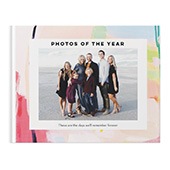
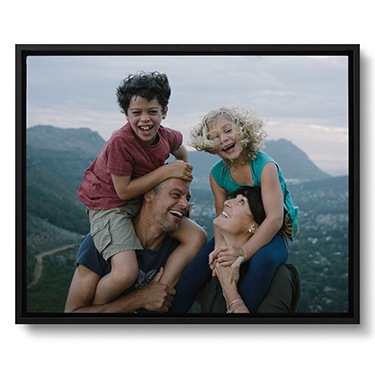

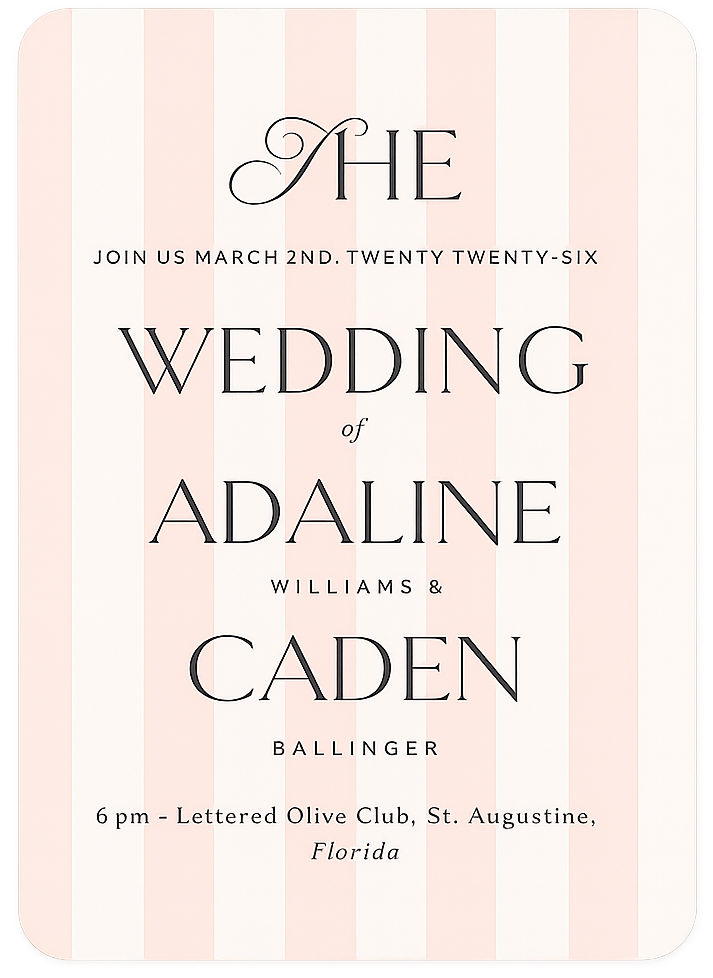


Turning your photos into a photo book is one of the most meaningful ways to preserve your memories. Whether it’s a family vacation, a wedding, a baby’s first year, or just everyday moments that make you smile, a photo book lets you hold your memories in your hands, share them with loved ones, and revisit them anytime. If you’ve ever wondered how to make a photo book, this guide will walk you through the entire process on Shutterfly — from gathering photos to ordering your finished book — so that even if it’s your first time, you can create something beautiful and personal.

Step 1: Gather and Prepare Your Photos
Before you start building your photo book, take a little time to gather the photos you want to include. This makes the entire creation process smoother and helps you stay focused once you’re inside the editor.
You can upload photos directly from your device, or import them from supported services like Google Photos, Amazon Photos, Instagram, Facebook, and more. If your photos already live across multiple places, pull them all into one spot so they’re easy to access when it’s time to design.
As you’re gathering photos, think about:
- The time period or story you’re telling (a year, a trip, a milestone, or a favorite memory)
- Rough volume (most photo books work best when you know whether you’re aiming for a shorter keepsake or a fuller book)
- Any photos you already know you want featured larger or on their own page
You don’t need to edit or perfect everything ahead of time, but starting with a curated set of photos helps the book feel intentional rather than overwhelming.
Step 2: Choose Your Photo Book Template
Once your photos are ready, the first real step in making a photo book is browsing design templates.
Photo book templates are pre‑designed layouts created for different themes, occasions, and storytelling styles. You’ll find options for travel, family, weddings, baby milestones, everyday life, and more. Each template includes coordinated page designs, fonts, and layouts that give your book a polished look from the beginning.
If you prefer full creative control, you can also choose to start from scratch with a clean, blank design.
At this stage, you’re not committing to photos yet—you’re choosing the visual foundation of your book. You can always adjust layouts and styles later.
Explore popular options:
- Travel Photo Books
- Family Photo Books
- Baby Photo Books
- Wedding Photo Books
- Everyday Photo Books
- Year in Review Photo Books
Step 3: Choose Your Photo Book Size, Cover Style & Binding
After selecting a template or starting from scratch, you’ll choose the physical details of your photo book. These choices affect how your book looks, feels, and opens.
Select Your Photo Book Size
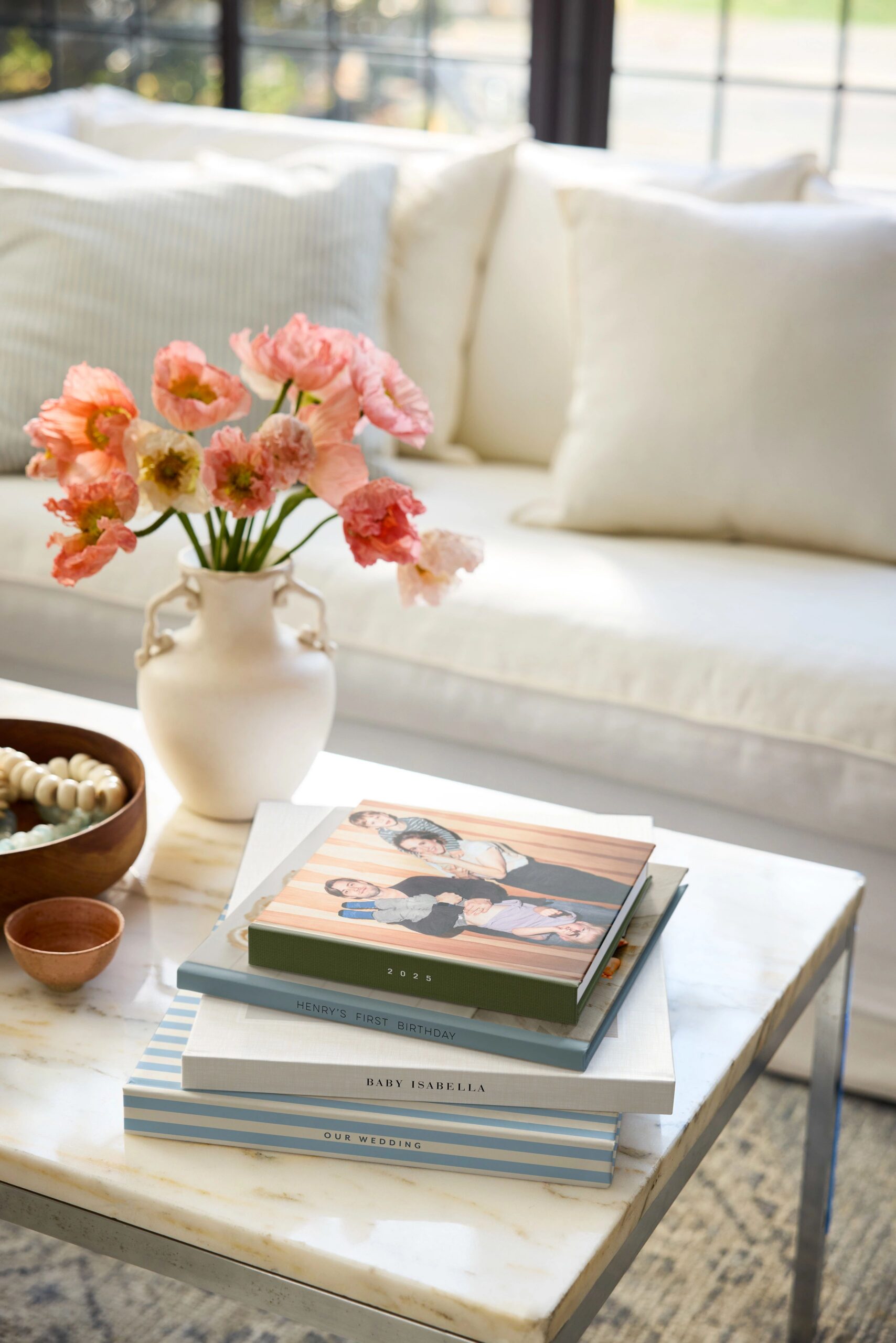
Photo books come in multiple sizes, including square, portrait, and landscape formats. Think about how your photos were taken and how you want the book to be experienced—whether it’s something you’ll flip through on a coffee table or hold in your hands.
Choose a Cover Type
Cover options include:
- Hardcover for a classic, durable finish
- Softcover for a lighter, magazine‑style feel
- Leather for a high-quality, luxe album
Your cover design can be customized later with photos, text, and layout changes.
Pick Your Binding Style
Binding determines how the book opens and how photos appear across pages:
- Standard binding opens like a traditional book
- Layflat binding allows pages to open flat, perfect for full‑spread photos
- Deluxe layflat binding offers an upgraded layflat experience with a premium feel
These choices set the structure of your book before you begin placing photos.
Step 4: Choose How You Want to Create Your Photo Book
Now it’s time to decide how hands‑on you want to be during the design process. This is where you’ll connect your uploaded photos to your book.
Option 1: Make It Fast
This option automatically designs your book for you. After selecting your photos, the system arranges them into layouts based on your chosen template. You can still edit everything afterward, but this is the fastest way to get a complete draft.
Option 2: Make It Manually
This option gives you full control. You place photos page by page, choose layouts, and build the book exactly the way you want. It’s ideal if you enjoy designing or want a highly personalized result.
Option 3: Make It For Me
With this free photo book designer option, a professional designer creates your photo book using your photos and selected preferences. In just 24 hours, you’ll receive a completed design that you can review and edit before ordering.
Once you choose your creation method, your photos are officially pulled into the editor.

Step 5: Customize Your Photo Book From Cover to Cover
This is the heart of the process—and where your book truly comes to life.
Design the Cover
Start with the front and back cover. You can:
- Swap photos
- Adjust text placement
- Edit titles, dates, or names
- Change layouts or background colors
Your cover sets the tone for the entire book, so take your time here.
Edit and Arrange Pages
Inside the book, you can move through pages one by one and:
- Add or remove photos
- Change page layouts
- Rearrange photos within a layout
- Add or delete pages entirely
Layouts are flexible, so you’re never locked into the original design.
Add Text and Captions
Text turns photos into a story. You can add:
- Page titles
- Captions
- Dates, locations, or short notes
Text boxes can be resized, moved, and edited so they work naturally with your photos.
Customize Backgrounds and Embellishments
Once you’re in the editor, you can customize the look and feel of each page beyond just photos and text. Shutterfly gives you built-in design tools that let you adjust backgrounds and add finishing touches, so your book feels polished and intentional, not default.
You can:
Change background colors or patterns to match your photos or overall theme
Add embellishments and design elements, such as icons, borders, or decorative accents
Adjust spacing and alignment so everything on the page feels balanced and clean
These details are what pull the whole book together. Even small changes, like a subtle background color or a simple embellishment, can make your photo book feel more cohesive and thoughtfully designed.

Step 6: Review, Preview, and Make Final Adjustments
Before ordering, preview your photo book from beginning to end. This step helps you catch:
- Typos or missing text
- Cropped faces or important details
- Photo order or page flow issues
You can jump back into the editor at any point to make changes.
Step 7: Place Your Order
Once you’re happy with your book, it’s time to order. Confirm your quantity, review your selections, and place your order with confidence knowing exactly how your photo book was created.
Related Resources on How to Make a Photo Book
Making a photo book isn’t about being a designer—it’s about preserving your memories in a way that lasts. By following these steps, you’re not guessing your way through the process. You’re making informed choices at every stage, from templates and bindings to layouts and finishing touches.
Now that you know how to make a photo book, you can return anytime to create new ones for life’s moments—big, small, and everything in between.
Additional Resources:
- Photo Books vs. Photo Albums: What’s the Difference?
- Shutterfly Photo Books Guide: Common FAQs
- New Photo Book Designs
- Best Travel Photo Book Designs
- Best Wedding Photo Book Designs
- Best Photo Book Designs for Graduation
- Best Photo Book Designs for Mother’s Day
- Coffee Table Photo Book Ideas
- How to Make an Affordable Photo Book
- How to Get the Best Photo Book Deals
- How Many Photos Should be in a Photo Book?
