










Creating a personalized photo calendar is a fun way to showcase your favorite memories while staying organized throughout the year. If most of your photos live on your phone, you might be wondering whether you can design and order a custom calendar directly from the Shutterfly mobile app.
The good news is that the process is simple. The Shutterfly app lets you choose a calendar template, upload photos from several sources, personalize each page, and add important events before ordering your finished calendar.
Quick Answer: Can You Make a Photo Calendar From the Shutterfly App?
Yes. You can create a personalized wall calendar directly in the Shutterfly app using your photos and customizable templates.
Here’s how it works:
- Choose a wall calendar template in the Shutterfly app
- Select your calendar size (8×11 or 12×12)
- Pick the starting month and year (it can start any month, not just January)
- Upload photos from your phone, Shutterfly account, Amazon Photos, Google Photos, or Facebook
- Customize layouts, backgrounds, stickers, and text
- Add birthdays, anniversaries, and important events to calendar dates
- Preview your design and order your printed photo calendar
The entire process can be completed right from your phone, making it easy to turn your favorite memories into a custom calendar.
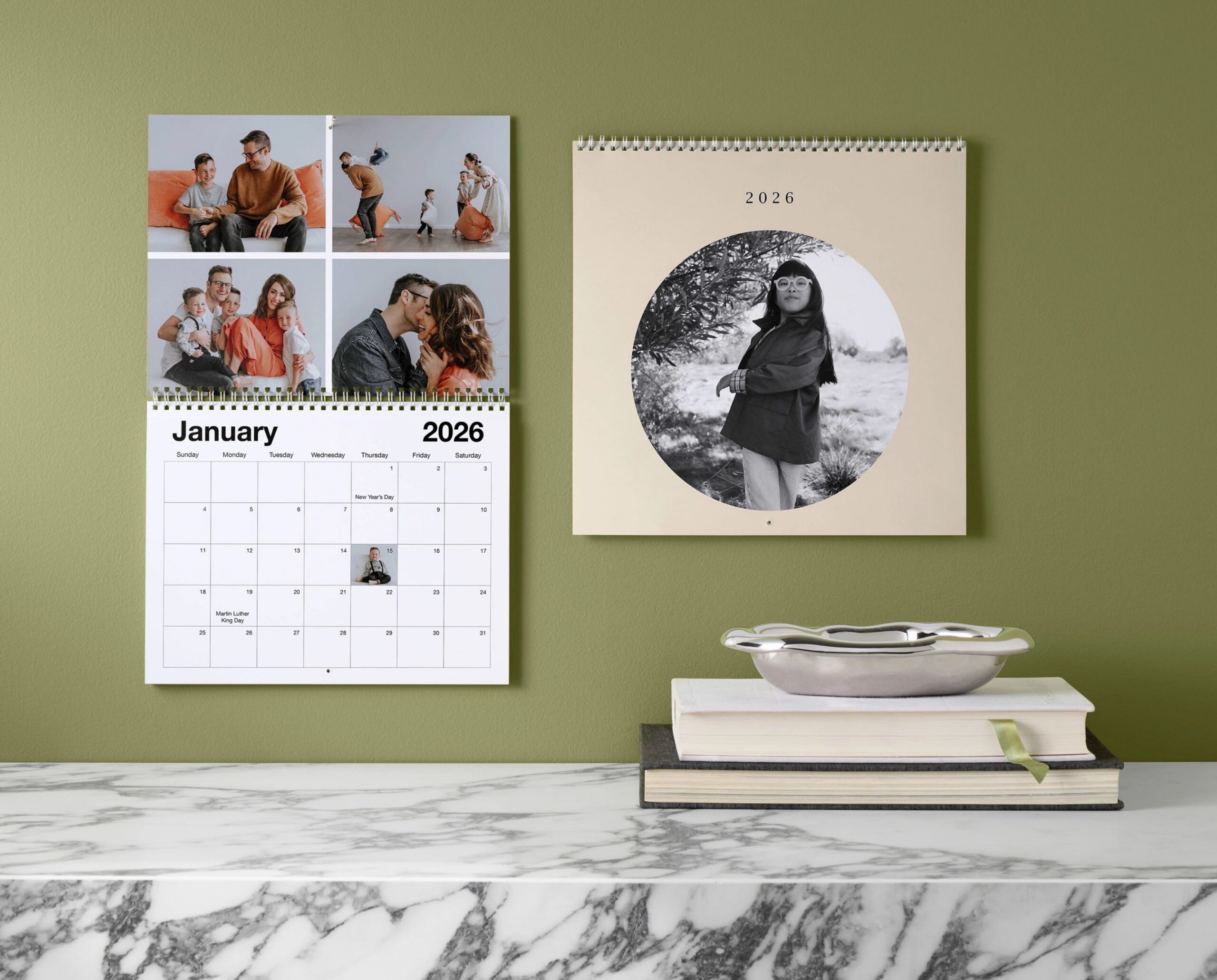
How to Make a Photo Calendar in the Shutterfly App
Creating a personalized wall calendar in the Shutterfly app is simple. Once you select a design you like, the app walks you through customizing every page.
Here’s how the process works.
1. Choose a Wall Calendar Design
Start by browsing the wall calendar templates available in the Shutterfly app. There are styles for every aesthetic, including modern designs, seasonal themes, family-focused layouts, and photo-forward templates that highlight your favorite pictures.
Select the design that best matches your style or the theme of your photos.
2. Select Your Calendar Size and Details
After choosing a design, you’ll customize a few basic options:
- Calendar size: 8×11 or 12×12
- Quantity
- Starting month and year
One of the most convenient features is that your calendar does not have to start in January. You can begin with any month, which makes it easy to create a calendar for birthdays, holidays, or special occasions throughout the year.
3. Upload Your Photos
Next, add the photos you want to feature in your calendar.
The Shutterfly app allows you to upload images from several places, including:
- Photos stored on your phone
- Photos already uploaded to your Shutterfly account
- Amazon Photos
- Google Photos
Once your photos are uploaded, you can start placing them into the calendar template.
4. Customize Each Page of Your Calendar
After your photos are added, you can personalize the calendar design from front to back.
The editor allows you to:
- Adjust photo layouts
- Change background colors or patterns
- Add stickers and decorative elements
- Include custom text or captions
- Rearrange photos within the template
This step helps you turn a basic calendar into something truly personal.

5. Add Important Dates and Events
One feature many people love is the ability to customize the actual calendar dates.
You can add:
- Birthdays
- Anniversaries
- Holidays
- School events
- Family milestones
You can even add photos or text directly to specific dates, making your calendar both decorative and practical.
6. Preview and Order Your Calendar
Before placing your order, preview your entire calendar to make sure everything looks perfect. Once you’re happy with the design, simply add it to your cart and complete checkout.
Your custom calendar will then be printed and shipped to you.
Frequently Asked Questions
Why Create a Photo Calendar From Your Phone?
Designing a calendar in the Shutterfly app makes the process quick and convenient. Since most of your photos already live on your phone, you can create a calendar anytime without needing to transfer files to a computer.
Photo calendars are especially popular for:
- Holiday gifts for family members
- Year-in-review photo collections
- Keeping track of family birthdays and milestones
- Showcasing favorite travel or pet photos
Because you can start the calendar at any month, they also make great last-minute gifts or personalized presents for birthdays and special occasions.
Can You Start a Shutterfly Calendar in Any Month?
Yes. When creating your calendar in the Shutterfly app, you can choose any starting month and year. This flexibility allows you to design calendars that begin with a birthday, anniversary, or special event rather than waiting until January.
What Size Photo Calendars Can You Make in the App?
The Shutterfly app currently offers two wall calendar sizes:
- 8×11 inches
- 12×12 inches
Both sizes allow you to customize photos, layouts, and calendar dates.
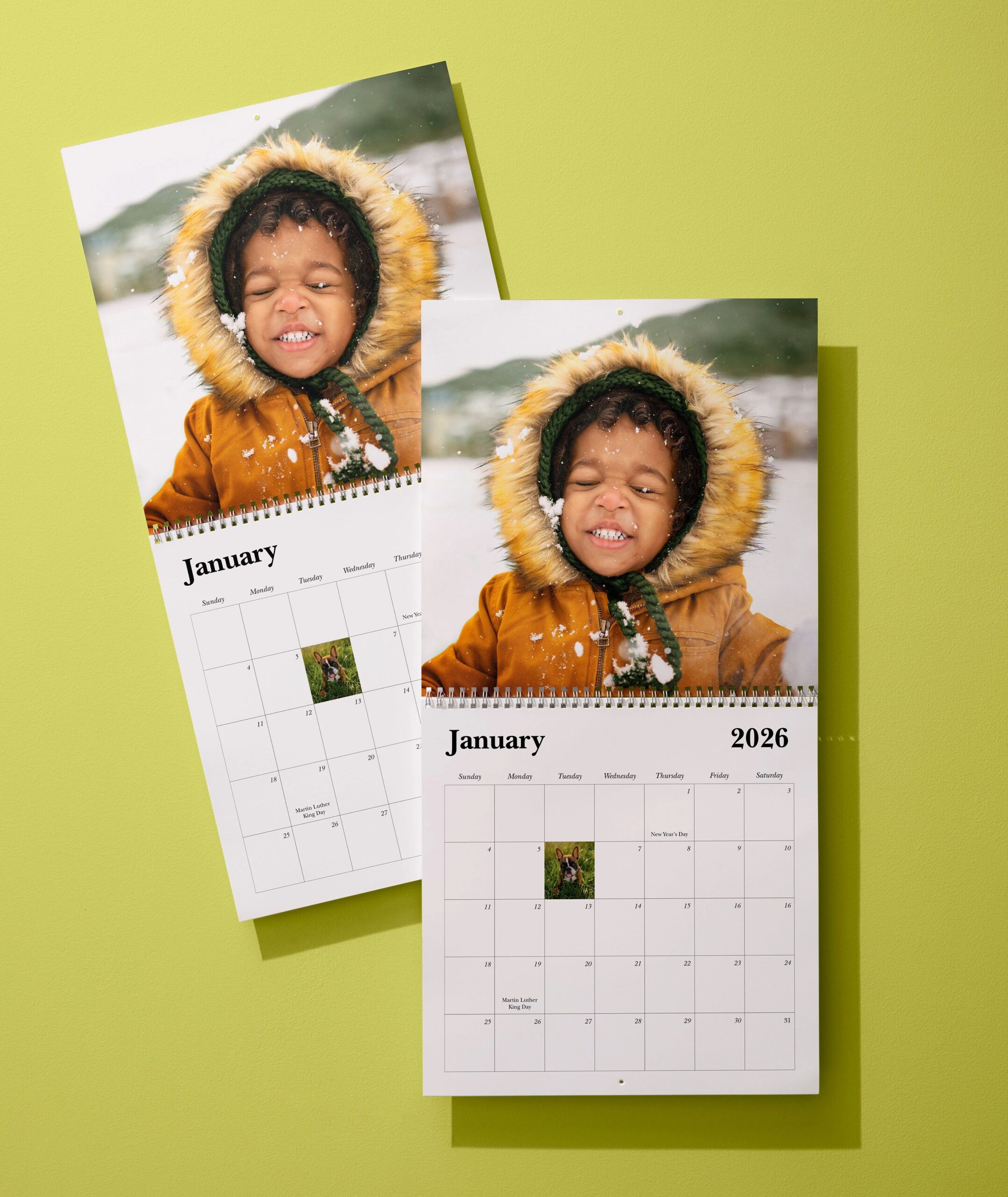
Can I add birthdays and events to a Shutterfly calendar?
Yes. You can customize the calendar dates by adding birthdays, anniversaries, holidays, and other important events. You can also include text or small photos directly on specific calendar days, making your calendar both decorative and practical.
Can I use photos from Google Photos or Facebook in the Shutterfly app?
Yes. In addition to photos saved on your phone, you can upload images from several connected sources, including:
- Photos already saved to your Shutterfly account
- Amazon Photos
- Google Photos
This makes it easy to pull photos from multiple places when designing your calendar.
Create a Calendar You’ll Enjoy All Year
Making a photo calendar in the Shutterfly app is a simple way to turn your favorite memories into something you can enjoy every day. Whether you’re highlighting family milestones, favorite travel moments, or everyday snapshots, a custom calendar lets you combine meaningful photos with practical organization.
Because you can personalize every page and even add important dates directly to the calendar, it becomes more than just a way to track the days—it’s a keepsake you’ll look forward to flipping through each month.
If you’re ready to start designing, explore different calendar styles, photo layouts, and customization options to create a photo calendar that reflects your favorite memories.
Additional Resources:
- Why Wirecutter Chose Shutterfly for Custom Photo Calendars
- How to Make a Photo Calendar
- Shutterfly Photo Calendars FAQs
- Best Online Calendar Maker for 2026
- Popular Calendar Sizes
Shop more calendars:
