





Sometimes 20 pages just aren’t enough to fit all your favorite memories. If you’re creating a vacation album, wedding photo book, or family yearbook, you may need extra space for photos, captions, and special moments. At Shutterfly, you can easily add pages to your photo book while you’re designing it. You can choose how many pages to add, decide where they go, and rearrange your book as needed. Here’s how to add more pages and what to know about page limits and pricing.
How to Add Pages in the Shutterfly Photo Book Editor
You can add pages at any time while creating your Shutterfly photo book. Start by signing in to your account and opening the photo book you want to edit, then follow these steps:
- Click the green + button: Find the green plus sign next to the viewing options in the photo book editor. You can access this button regardless of which creation view you’re using.
- Enter the number of pages: Type how many pages you want to add. You can add a single page or multiple pages at once, although we recommend adding an even number.
- Choose where to add your pages: Use the dropdown menu to place them at the end of your book, after the title page, or after any existing numbered page. Then click Add Page(s) to insert them into your book.
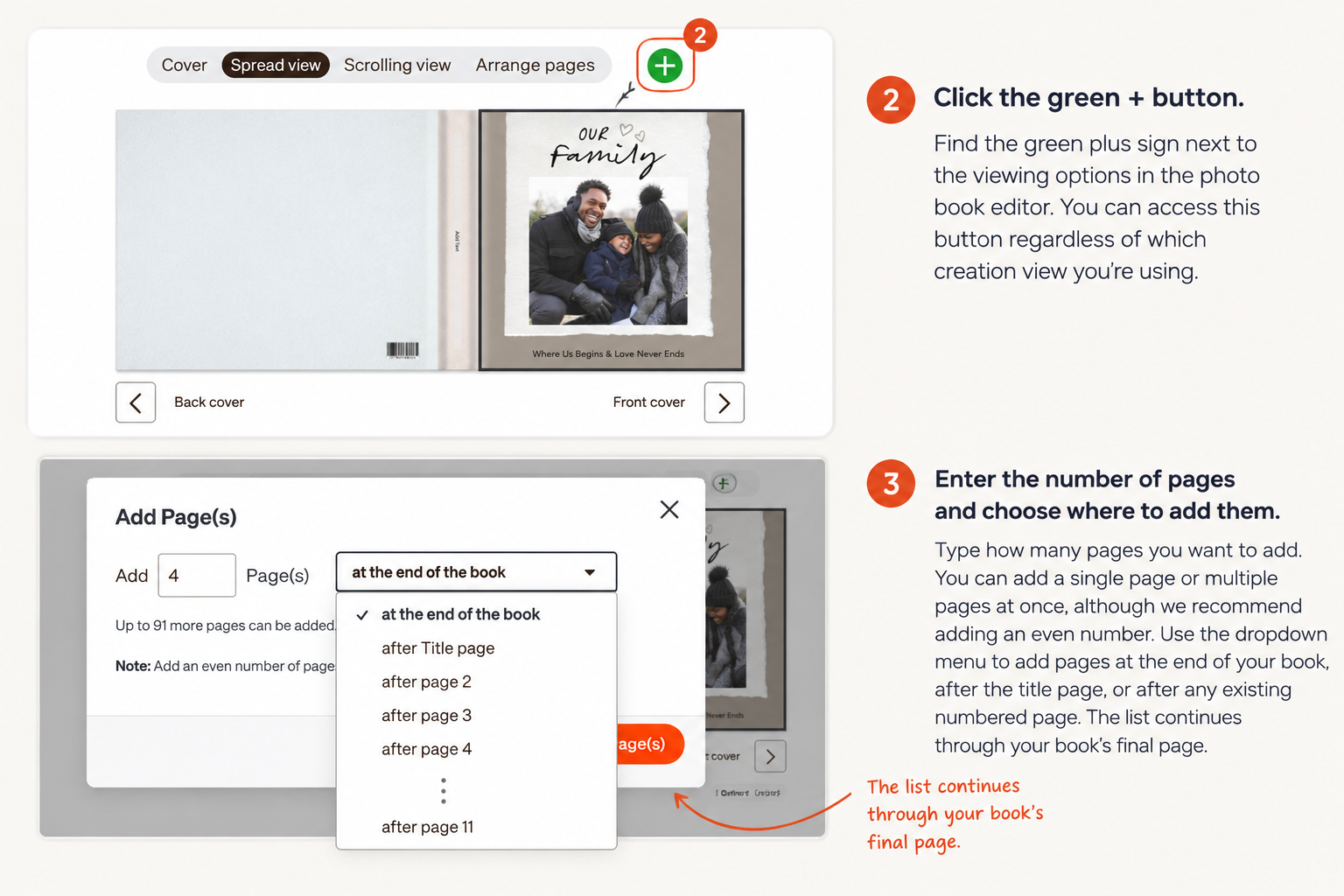
How to add pages to a Shutterfly photo book using the green + button in the editor.
Once you’ve added your pages, you can fill them with photos, choose different layouts, add text, and customize the backgrounds to match the rest of your book. Be sure to save your project as you make changes.
How Many Pages Can a Shutterfly Photo Book Have?
Shutterfly photo books start with 20 pages and can include up to 111 pages total. That gives you room to expand your book as you add more photos and memories.
- Minimum: 20 pages
- Maximum: 111 pages
- Additional pages: You can add pages beyond the initial 20, up to the maximum allowed.
You don’t need to know your final page count when you start designing. You can begin with the standard 20 pages and add more as you go.
How Much Does It Cost to Add Pages to a Photo Book?
Adding pages beyond the included 20 pages increases the price of your Shutterfly photo book. The cost depends on your selected book size, page type, and any applicable promotions.
You can check how additional pages affect your total directly in the photo book editor:
- Click the price displayed at the top of the editor.
- Open the price summary to see your book’s pricing details.
- Review the Pages & Binding section, along with any other selected upgrades.
- Check the updated total after adding pages.
This makes it easy to see how your page count contributes to the cost before you place your order.
Tip: Check our current Shutterfly deals for photo book promotions, including offers that may help you save on extra pages. Be sure to review each promotion’s terms, since not all discounts apply to additional pages.
How to Rearrange Pages in Your Photo Book
If you’ve added pages but want them in a different location, you don’t need to start over. Shutterfly lets you rearrange pages as you design.
Open Arrange Pages in the editor, then drag and drop pages or spreads into your preferred order. You can use this feature to organize your book chronologically, group photos by event, or move newly added pages between existing sections.
Review your photo book after rearranging to make sure your photos and captions appear in the correct order.
How to Delete Pages From a Shutterfly Photo Book
Added too many pages? You can remove pages you no longer need.
- Open your photo book in the editor.
- Select the page you want to remove.
- Click Page Options and choose Delete this page.
- Confirm by clicking Delete this Page.
Deleting a page removes its layout and content from the book, so make sure you no longer need that page before confirming. Keep in mind that your photo book must have at least 20 pages.
Frequently Asked Questions About Adding Photo Book Pages
Can I add pages after I’ve started making my Shutterfly photo book?
Yes. You can add more pages at any point while designing your photo book. Open your saved project, click the Add Pages button, and choose how many pages to insert.
Can I add pages in the middle of my photo book?
Yes. When adding pages, the editor lets you choose where to insert them. You can also use Arrange Pages to move pages into a different order.
Can I add more than 20 pages to a Shutterfly photo book?
Yes. Shutterfly photo books start with 20 pages, but you can add more, up to a total of 111 pages. Additional pages may increase the cost of your book.
Can I remove extra pages if I change my mind?
Yes. Select the page you want to remove, open Page Options, and choose Delete this page. You can remove extra pages as long as your book still meets the 20-page minimum.
Do I have to add all my pages before uploading photos?
No. You can upload photos and add pages throughout the design process. If you find more photos you’d like to include, simply add more pages and continue customizing your book.
Make Room for More Memories in Your Photo Book
Your photo book should have enough room to tell your story without leaving out the moments that matter. With Shutterfly’s flexible photo book editor, you can add, remove, and rearrange pages as your project comes together. Start creating your custom photo book and give every favorite memory a place.
Additional Resources:
