


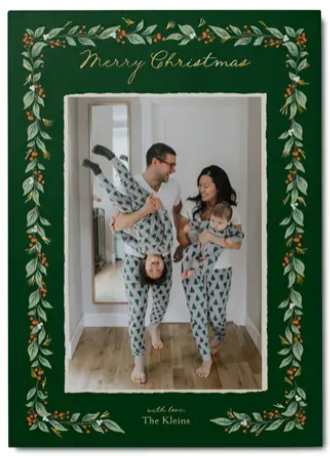


You’ve chosen the perfect photo for your photo book, prints, Christmas cards, or another personalized project, but then you see a low-resolution warning. What does it mean, and can you still use the picture?
A low-resolution warning means your photo may not have enough image detail for the size you’re trying to print. The good news is that you may not need to give up on a favorite photo. Using the original image, adjusting its size, or choosing a different version can help you get better results.
What Does a Low-Resolution Warning Mean on Shutterfly?
If you see a low-resolution warning while creating your Shutterfly project, the photo may not have enough resolution to print clearly at the size you’ve chosen. A low-resolution photo can look blurry, soft, or pixelated when printed, especially when it’s enlarged.
Resolution refers to the amount of image detail available in a photo. As you make a photo larger, those pixels have more space to fill, so the image needs enough resolution to stay clear.
That’s why a photo can look perfectly clear on your phone or computer but still trigger a low-resolution warning in your project. A smaller screen can make an image look sharp, while using that same photo at a larger size can make lower resolution more noticeable.
How to Fix a Low-Resolution Photo on Shutterfly
If you see a low-resolution warning, try these fixes before replacing a favorite photo.
1. Use the Original Photo
Start with the original, full-size version of your photo whenever possible.
Photos downloaded from social media, sent in compressed form, or saved from another source may contain less image detail than the original file. A screenshot can also leave you with a lower-quality version instead of the original photo.
If someone else took the picture, ask for the original file rather than downloading it from social media or taking a screenshot. If you’re not sure where your original is saved, check your camera roll, computer, cloud photo storage, or backups for a higher-quality version.
This is especially helpful for favorite photos you want to feature prominently in a photo book, enlargement, or piece of wall art.
2. Try Making the Photo Smaller
The size at which you use a photo matters.
If you’re creating a photo book and see a low-resolution warning, try placing the image in a smaller photo box or reducing its size on the page. Continue making the photo smaller until the warning disappears.
A photo that doesn’t have enough resolution for a large, full-page layout may still look great at a smaller size.
3. Use Less Cropping
Cropping removes part of an image, leaving fewer pixels for the portion you want to print. A photo that has enough resolution at its original size may trigger a warning after it’s been cropped significantly.
When possible, start with the original photo and use our cropping tools to position it within your project. If you see a resolution warning after cropping, try pulling the crop back to include more of the original image.
4. Choose a Smaller Print Size
If you’re ordering photo prints, consider whether your favorite photo might work better at a smaller size.
The larger you print an image, the more resolution it needs to stay clear. A photo that doesn’t have enough detail for a larger print may still look great at a smaller size.
5. Choose Another Photo if the Warning Remains
Sometimes a favorite photo just isn’t the right fit for the size you want to create. If you’ve tried using the original image, making it smaller, and adjusting the crop but still see a low-resolution warning, try another photo with a higher resolution.
For a full-page photo book layout, large print, or other prominent spot, choose a clear, high-resolution photo that can really shine at a larger size.
Can You Increase the Resolution of a Photo?
Making a small image larger doesn’t add the missing detail back into the photo.
Photo editing tools can enlarge an image file, but that doesn’t necessarily mean it will print more clearly. If the original image is low resolution, enlarging it can still leave the photo looking soft or pixelated when printed.
For the best results, start with the original, highest-quality version of your photo whenever possible.
Why Does My Photo Look Clear on My Phone but Have a Low-Resolution Warning?
A photo can look perfectly clear on your phone but still not have enough resolution for the print size you’ve chosen.
Phone screens are relatively small, so lower resolution can be harder to notice. When you use the same image for a larger print, photo book layout, or other photo product, there’s more space for those pixels to fill. That can make a lower-resolution image look softer or more pixelated in print.
That’s why you may see a low-resolution warning even when the photo looks great on your screen.
Does Cropping Lower Photo Resolution?
Yes. Cropping removes pixels from the original image, leaving less image information available for printing. The tighter the crop, the more noticeable that loss can become when you enlarge what’s left.
For example, you might start with a clear group photo and crop in closely to feature one person. While the full photo has plenty of resolution, the smaller cropped portion may not have enough detail for a large print or full-page photo book layout.
Whenever possible, start with the original image and avoid cropping more than you need to.
Does a High-Resolution Photo Always Mean Good Print Quality?
Not necessarily. Resolution is important, but it’s only one part of what makes a photo look great in print.
A photo can have plenty of resolution and still look blurry, grainy, too dark, or out of focus. Before ordering, take a close look at the photo itself and check for:
- Blurriness or motion blur
- Graininess
- Very dark areas
- Overexposed areas
- Poor focus
- Important details that could be lost when cropped
Our low-resolution warning helps you identify when an image may not have enough resolution for the size you’ve chosen, but you’ll still want to give the photo itself a final look before ordering.
How to Choose Photos That Will Print Clearly
Start with the best version of your photo you have. Original image files are usually your best choice, especially for larger prints, full-page photo book layouts, wall art, and other places where the photo will be displayed at a larger size.
When the original is available, avoid screenshots, heavily cropped photos, or copies saved from social media. Think about how large you want the photo to appear, too. An image that works beautifully as a smaller print or supporting photo in a photo book may not have enough resolution for a large wall print or full-page layout.
As you create, we’ll let you know if a photo falls below the recommended resolution for the size you’ve chosen.
Low-Resolution Photo FAQs
Can I ignore a low-resolution warning on Shutterfly?
The warning lets you know that your photo may not have enough resolution to print clearly at its current size. Before ordering, try the original image, reduce the size or crop, or choose a higher-resolution photo.
How many megapixels do I need to print photos?
The resolution you need depends partly on how large you want your photo to appear. Smaller prints and photo placements require less image detail than larger prints, wall art, or full-page photo book layouts.
If a photo falls below our recommended resolution for the size you’ve chosen, you’ll see a low-resolution warning while creating your project.
Why is my photo blurry if I don’t see a low-resolution warning?
Resolution and sharpness aren’t the same thing. A photo can have enough pixels for the size you’ve chosen but still be blurry because of movement, poor focus, low light, or other issues.
Take a close look at important photos before ordering to make sure they’re as clear as you want them to be.
Will screenshots print clearly?
Screenshots may have a lower resolution than the original photo and can be limiting when you want to print an image at a larger size. If you have access to the original photo, use that version for the best results.
Does photo resolution matter more for larger prints?
Yes. The larger you make a photo, the more image detail it needs to stay clear. A photo that looks great as a smaller print or photo book image may not have enough resolution for a large print or piece of wall art.
Get Your Photos Ready to Print
A low-resolution warning doesn’t mean you have to give up on a favorite photo. Starting with the original image, adjusting the crop, or displaying the photo at a smaller size may be all you need to get your project back on track.
Once your photos are ready, turn them into photo books, photo prints, wall art, cards, calendars, and personalized gifts you’ll love seeing, sharing, and giving.
Additional Resources:
