





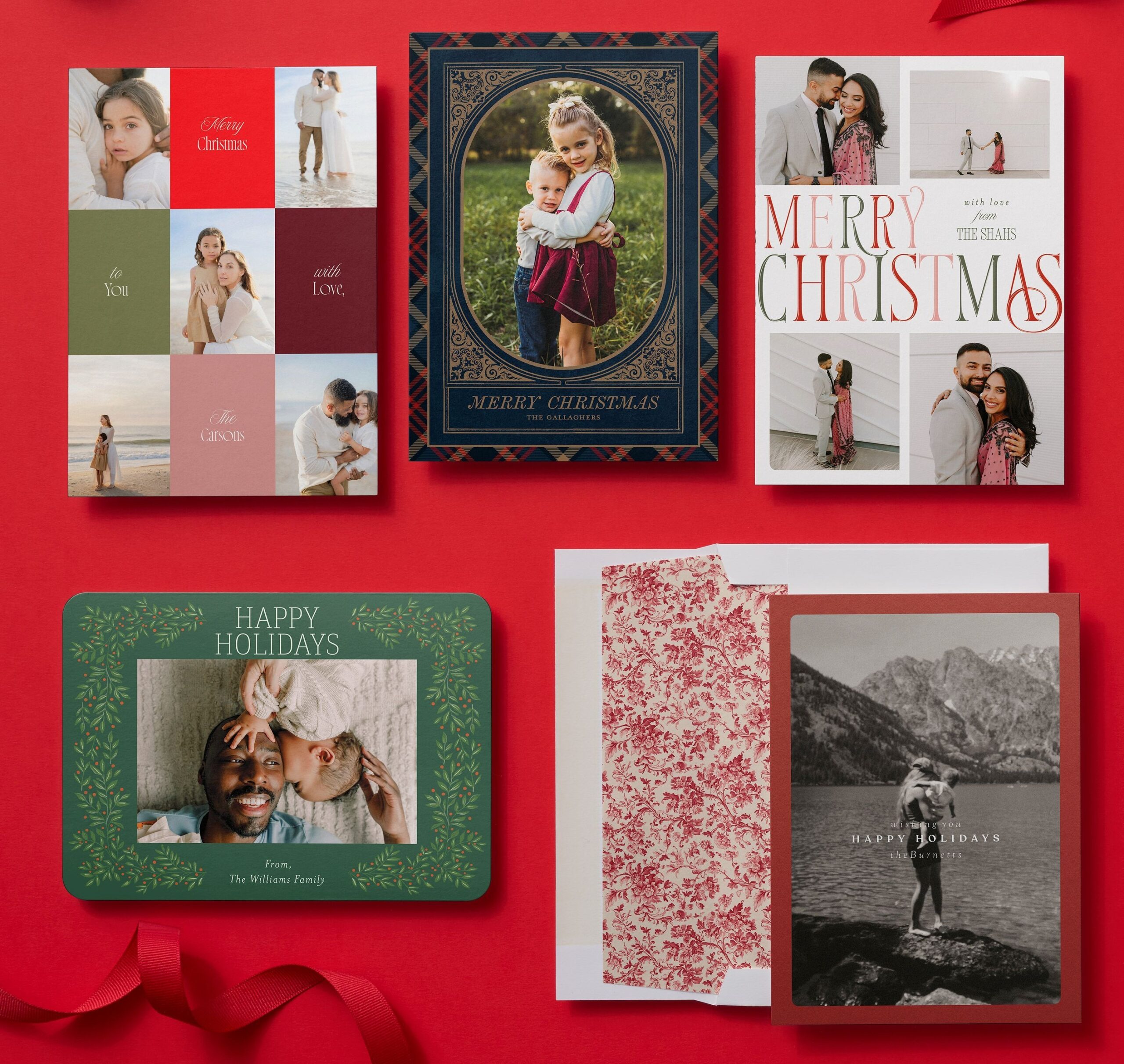
Your Google Photos library is a great place to start when you’re making personalized Christmas cards. A favorite family photo can take center stage on a full-photo design, while a few snapshots from throughout the year can give everyone a little peek at what you’ve been up to. With Shutterfly, you can bring photos over from Google Photos and use them to create your Christmas cards on your computer or in the app.
Can You Make Christmas Cards From Google Photos?
Yes! With Shutterfly, you can use your favorite pictures from Google Photos to create Christmas cards for family and friends. On the Shutterfly website, you can import photos to your Shutterfly photo library or add them directly from the card editor. In the Shutterfly app, simply choose Google Photos as your photo source while personalizing your card.

How to Upload Google Photos to Shutterfly Before Choosing a Card
If you’re making your Christmas cards on a computer, you can start by importing pictures from Google Photos into your Shutterfly photo library. You don’t need to choose your card first, so this is especially handy if you have a few favorites you want to try in different designs.
- Sign in to your Shutterfly account.
- Select Photos in the top-right corner.
- Select Upload next to the cloud icon.
- Choose Google Photos as your photo source.
- Sign in to your Google account and allow access if prompted.
- Select the pictures you’d like to use.
- Complete the upload to save the pictures to your Timeline or an album.
Once your photos are uploaded, choose a Christmas card design and select Personalize. Your imported pictures will be waiting in your Shutterfly photo library, ready to add to your card. If you have several favorites you want to feature, use the number-of-photos filter while browsing Christmas cards to find designs with enough photo spots.
How to Add Google Photos While Making Your Christmas Card
If you’ve already found a Christmas card you love, you don’t need to upload your pictures to Shutterfly first. You can choose Google Photos as your photo source while personalizing your card on the Shutterfly website or in the app.
On the Shutterfly website:
- Open your Christmas card design and select Personalize.
- When you’re ready to add photos, choose Google Photos as your photo source.
- If you haven’t connected your account yet, follow the prompts to give Shutterfly access to your Google Photos.
- Select the pictures you’d like to use, then click Add to Project.
- Add your photos to the photo spots in your design and adjust the crops as needed.
In the Shutterfly app:
- Open the Shutterfly app and browse Christmas Cards.
- Choose a design and tap Personalize.
- When you’re ready to add pictures, choose Google Photos as your photo source.
- Sign in to Google and follow the prompts to connect your account if needed.
- Select your pictures and add them to the photo spots in your design.
- Adjust the crops as needed, then continue personalizing your card.
The photos you add from Google Photos will also be saved to your Shutterfly photo library, so they’ll be available for other cards and photo projects.
FAQs
Do I need to download my Google Photos before making Christmas cards?
No. You can add pictures straight from Google Photos while personalizing your Christmas card on the Shutterfly website or in the app. Choose Google Photos as your photo source, connect your account if prompted, and select the pictures you want to use.
Can I use more than one picture from Google Photos on my Christmas card?
Yes. You can use several pictures from Google Photos on one Christmas card. The number you can feature on the front depends on the design and photo layout you choose. You can also use free back-of-card customization to add more photos to the back.
Can I use Google Photos I’ve already uploaded to Shutterfly?
Yes. If your pictures are already saved in your Shutterfly photo library, you can select them there when you personalize your Christmas card. You can also use previously uploaded pictures alongside new ones you bring over from Google Photos.
Turn Your Google Photos Into Christmas Cards
Some of the best Christmas card photos are probably already sitting in your Google Photos library. Bring your favorites into Shutterfly, find a Christmas card design that fits the pictures you want to share, and make it personal with your own photos and holiday message.
Additional Resources:
- How to Print Photos From Google Photos
- How to Make Canvas Prints From Google Photos
- How to Upload Google Photos to Shutterfly
- How to Make a Photo Book From Google Photos
- How to Upload Photos to Shutterfly
- How to Make Holiday Cards With Your Amazon Photos
- How to Make Christmas Cards From Photos on Your Phone
