





Some photos deserve a spot beyond your camera roll. If your favorite pictures are saved in Google Photos, you can bring them into Shutterfly and turn them into personalized canvas prints for your walls.
You don’t need to download every image from Google Photos to your computer or phone first. Shutterfly lets you connect your Google Photos account and import the pictures you want to use. Once they’re uploaded, you can start creating a canvas print with favorite family photos, vacation snapshots, wedding pictures, pet photos, and other memories you’d love to see every day.
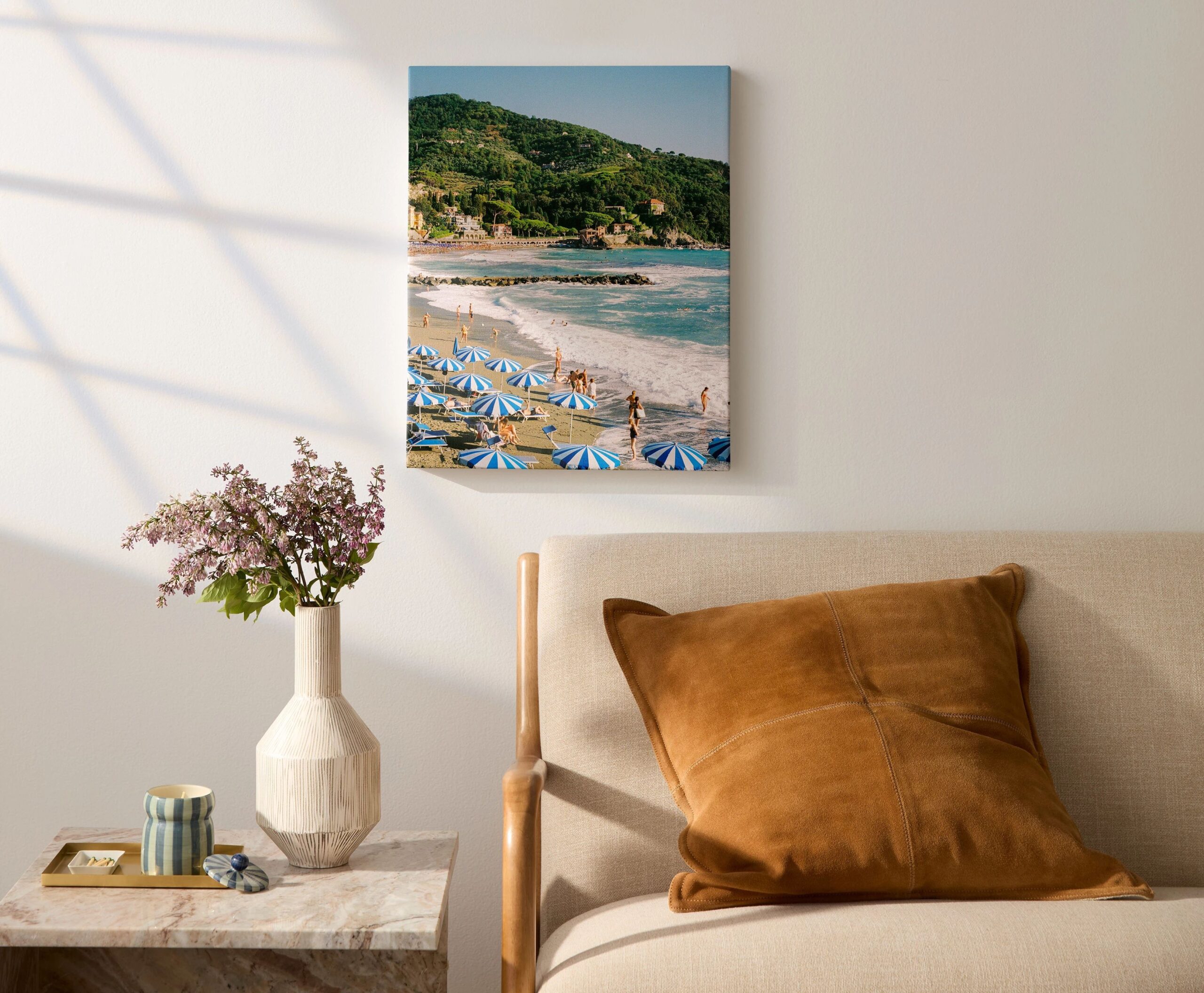
Can You Make Canvas Prints From Google Photos?
Yes. You can connect Google Photos to Shutterfly and upload pictures directly to your Shutterfly photo library. Google Photos is available as a photo source on both the Shutterfly website and in the Shutterfly app.
Once your photos are available in Shutterfly, you can use them to personalize your canvas print.
How to Upload Google Photos to Shutterfly
If you’re starting on the Shutterfly website, first bring the pictures you want to use into your photo library:
- Sign in to your Shutterfly account.
- Select Photos in the top-right corner.
- Select the Upload button next to the cloud icon.
- Choose Google Photos as your photo source.
- Sign in to your Google account if prompted.
- Select the photos you want to upload.
- Complete your upload and save the photos to your Timeline or an album.
Your Google Photos are now available in your Shutterfly account, so you can use them when creating your canvas print.
How to Make a Canvas Print With Google Photos in the Shutterfly App
You can also bring your Google Photos into your project while creating a canvas print in the Shutterfly app.
- Open the Shutterfly app and select Categories from the bottom menu.
- Select Wall Art, then Canvas Prints.
- Choose a canvas print design.
- Select your size and frame options, then tap the orange Personalize button.
- When prompted to add photos, choose Google Photos as your photo source. If your account isn’t already connected, follow the prompts to connect it.
- Select the Google Photos you want to use. Your uploaded pictures will appear in the Photos tab of the editor.
- Add your pictures to the canvas and adjust the crop for each image.
- Personalize your design using the available layout, text, size, background, design, and frame color options.
- Select Preview to take a final look at your canvas.
- When you’re happy with the design, select Add to Cart.
Choosing Google Photos for Your Canvas Print
A canvas print gives a photo more room to make an impact, so this is a good opportunity to look through your Google Photos for pictures you’d genuinely love seeing on your wall.
Start with a photo that has a clear subject and enough detail to reproduce well at the canvas size you choose. Family portraits, landscapes, wedding photos, travel memories, pets, and candid moments can all become meaningful wall art when you give them a larger place in your home.
If you have several photos you want to feature together, choose a collage canvas design that lets you include multiple images rather than narrowing your favorites down to just one.
Do You Have to Download Google Photos Before Making a Canvas Print?
No. You can select Google Photos as an upload source in Shutterfly rather than downloading each picture to your device first. On the website, you can upload from Google Photos to your Shutterfly photo library; in the app, Google Photos can also be connected as a photo source.
That gives you an easier way to go from a picture you’ve already saved to a canvas you can hang at home.
Turn Your Favorite Google Photos Into Canvas Wall Art
Your Google Photos may hold years of moments you love, but they don’t have to stay on a screen. Choose a photo that makes you happy every time you see it and turn it into a personalized canvas print that gives that memory its own place in your home.
With your Google Photos connected to Shutterfly, you can bring your picture into your project, customize your canvas, preview the finished design, and create wall art that feels personal to you.
Additional Resources:
- How to Upload Photos to Shutterfly
- How to Make a Canvas Print in the Shutterfly App
- How to Make a Photo Book From Google Photos
- How to Choose a High-Quality Canvas Print
- Canvas Prints FAQs
- Best Canvas Print Styles for Your Space
- How to Create a Canvas Print With Your Photos
- Canvas vs Acrylic Prints
- Canvas vs Framed Prints
- Canvas vs Metal Prints
