





Some of your favorite moments are already on your phone: a family vacation, your wedding day, or an everyday photo that always makes you smile. With the Shutterfly app, you can turn those memories into a canvas print without moving your photos to a computer. Choose a design, upload your pictures, and customize the layout, size, and frame right from your phone.
Here’s how to create a canvas print in the Shutterfly app, from finding a template to reviewing your finished design.
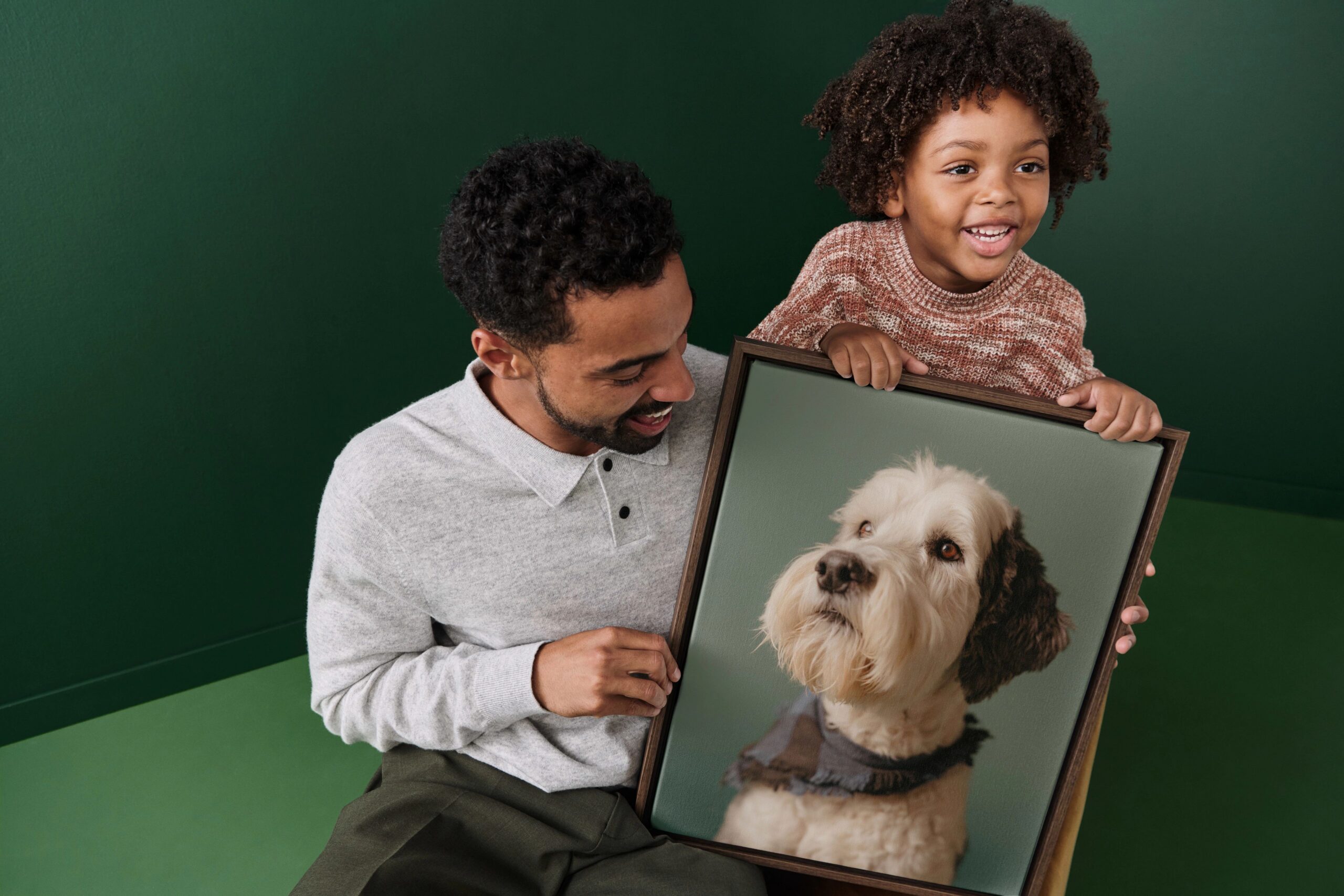
1. Find Canvas Prints in the App
Open the Shutterfly app and select Categories in the bottom menu. Tap Wall Art, then Canvas Prints to browse designs.
Use the filters to narrow your options by size, number of photos, orientation, frame type or color, and design style. If you already know you want a landscape canvas with three photos, for example, filtering first can help you find a template that fits.
For a design that keeps the focus on your photography, start with a Photo Gallery Canvas Print. If you’ve already created a finished design, choose Upload Your Own Design to use your artwork.
2. Choose Your Canvas Size and Frame
Select a template to see its available product options. Before opening the editor, choose your canvas size, decide if you want a frame, and set your quantity. If you select a frame, choose an available frame color, too.
You can adjust these selections later in the editor, so you have room to make changes as your design comes together. When you’re ready, tap the orange Personalize button at the bottom of your screen.
Our gallery-wrapped canvas prints are stretched over a solid wood frame and include a metal sawtooth hanger. Choose an unframed canvas to display the wrapped edges, or add a decorative frame to finish the look.
3. Add Photos to Your Canvas Print
The app will prompt you to add photos. You can choose pictures from your phone, your Shutterfly account, Amazon Photos, Google Photos, or Facebook. If you select an account that isn’t connected yet, follow the prompts to connect it.
Your selected pictures will appear in the Photos tab. From there, add them to the photo spaces in your template. You can upload several pictures to compare your options, even if you’re only using one in the finished canvas.
Start with a clear original image whenever possible. A screenshot or a photo saved from social media may have less detail than the original file, which matters more when you enlarge it for your wall.
4. Adjust Your Photo Layout and Crop
Once your photos are in place, adjust the crop for each one. Check that everyone’s face is fully visible and that important details have enough room around them. Pay attention to the edges of the canvas, too, so the final placement works with the gallery wrap.
Open the Layout tab to explore different arrangements. Depending on your design, you can change the number of photos, choose a layout with text, or switch the canvas orientation.
Try a few layouts before deciding. One favorite portrait may work well on its own, while a set of vacation photos can tell more of the story in a collage.
You can also explore the available AI photo tools if you want to make additional edits. Options include applying creative filters, adjusting faces to look toward the camera, opening closed eyes, or expanding an image. Review any changes closely before keeping them.
5. Customize Text, Backgrounds, and Product Options
Use the editor tabs to finish your canvas print:
- Text: Edit existing text, add a new text box, or remove wording you don’t want. A family name, wedding date, or short caption can help mark the moment.
- Background: Choose a background color that works with your photos and design.
- Size: Change the canvas size if you decide you want something larger or smaller.
- Frame Color: Change the frame color or switch between framed and unframed options.
- Design: Try a different template.
If you change templates after you’ve started editing, double-check every photo and text box. The new design may move your photos or change their placement. Review your crop again after changing the size, layout, or orientation, too.
The price at the top of the editor lets you see how selections such as a larger size or added frame affect your total.
6. Preview and Save Your Canvas Design
Tap the orange Preview button at the top right to view your canvas without the editing controls. Take a moment to check your photo placement, spelling, background color, and overall layout.
Before ordering, review:
- Photo crops: Make sure faces and important details aren’t cut off.
- Image clarity: Look for blur in the photos you’ve selected, especially if you’ve cropped in closely.
- Text: Check names, dates, and spelling.
- Product selections: Confirm the size, orientation, frame, and quantity.
To save your work, tap the gray circle with three dots above your design, below the Preview button. This menu also gives you access to your canvas pricing details and our Help Center.
If you’d like to finish later, save your design and return to it through Projects in the app’s bottom menu. You can continue editing or share the project with a friend for another opinion.
7. Add Your Canvas Print to Your Cart
When you’re happy with your design, tap the orange Add to Cart button at the top right of your screen.
Review your order and apply any eligible promo codes before checking out. To find current offers, open Store from the app’s bottom menu and look for Special Offers on the Store home page.
You can also read our guide to finding the best canvas print deals for more ways to save, including comparing sizes and framed versus unframed options.
How to Choose a Canvas Size for Your Photo
Our canvas print collection includes 13 sizes, from 8×10 to 36×36, with portrait, landscape, and square options. Start with your photo’s shape, then consider where you’ll hang the finished canvas. Available sizes vary by design.
- Portrait photos: A vertical canvas often works well for individual portraits, couples, and photos with more height than width.
- Landscape photos: A horizontal canvas gives group photos, scenery, and wide shots room to fit.
- Square photos: A square canvas can suit a centered portrait or a photo with room to crop evenly around the subject.
- Multiple photos: Choose a collage layout that gives each picture enough space. A larger canvas can make smaller moments easier to see.
Measure your wall before choosing a size, and use the clearest version of your photo for larger prints. If the crop removes something you want to keep, try a different orientation, layout, or photo.
Turn a Favorite Phone Photo Into Canvas Wall Art
The Shutterfly app makes it easy to take a photo you love beyond your camera roll. Start with a template, make room for the details that matter, and preview your design before ordering. From one favorite portrait to a collage of family memories, you can create a canvas print that brings those moments into your home.
Additional Resources:
- How to Choose a High-Quality Canvas Print
- Canvas Prints FAQs
- Best Canvas Print Styles for Your Space
- How to Create a Canvas Print With Your Photos
- Canvas vs Acrylic Prints
- Canvas vs Framed Prints
- Canvas vs Metal Prints
- Make a Photo Calendar on the Shutterfly App
- Make a Photo Book on the Shutterfly App
