





Some of the best photos for your Christmas cards are probably already on your phone. From family vacations and birthday celebrations to candid moments at home, the pictures you’ve taken throughout the year can make your holiday greetings feel more personal.
With Shutterfly, you can upload photos from your phone and turn your favorites into custom Christmas cards. Create your cards right from the Shutterfly app, or upload your phone photos to your Shutterfly account and continue designing on your computer. Here’s how to get your favorite pictures off your camera roll and onto Christmas cards your friends and family will love.

How to Make Christmas Cards From Phone Photos
Making Christmas cards with pictures from your phone is simple:
- Choose the photos you want to use
- Upload your phone photos to Shutterfly
- Find a Christmas card design
- Add your photos and personalize your card
- Review your Christmas cards and place your order
Step 1: Choose the Photos You Want to Use
Start by looking through your camera roll for the photos you’d most like to share with friends and family this Christmas. You might already have a favorite family portrait in mind, or you can look back at pictures from vacations, birthdays, school milestones, everyday adventures, and other memorable moments from the year.
Think about how many photos you want to feature, too. A favorite family picture can take center stage on a single-photo Christmas card, while a multi-photo design gives you room to share several moments from the year.
It can help to favorite the pictures you’re considering or add them to an album on your phone so they’re easy to find when you’re ready to upload.
Step 2: Upload Your Phone Photos to Shutterfly
Once you’ve chosen your pictures, upload them to your Shutterfly account so you can use them on your Christmas cards.
If you’re using the Shutterfly app:
- Download the Shutterfly app and sign in to your account.
- Select Photos at the bottom of the screen.
- Tap the orange Upload button.
- Choose the photos from your device that you want to add.
- Tap Upload again.
- Add the photos to your Timeline or a specific album.
You can also get photos from your phone into Shutterfly while working on your computer. Sign in to Shutterfly, go to Photos, select Upload, and choose Phone as your photo source. Scan the QR code with your phone, choose your pictures, and they’ll upload directly to your Shutterfly account.
So, even if your Christmas card photos are on your phone, you don’t have to create the entire project on a small screen. Once your pictures are uploaded to your Shutterfly account, you can use the app or sign in on your computer to create your project.
If your favorite pictures are saved somewhere other than your camera roll, Shutterfly also lets you import photos from Google Photos, Amazon Photos, and Facebook.
For more help with any of these options, see our guide to uploading photos to Shutterfly.
Step 3: Choose a Christmas Card Design
Now for the fun part: finding a Christmas card design that works with the photos you picked.
Think about your pictures as you browse. If you have one family portrait you love, look for a design that gives that photo plenty of room to shine. If you’re having trouble narrowing down your camera roll, choose a multi-photo Christmas card that lets you include several favorite moments.
You can also consider whether your photo looks best in a portrait or landscape layout and how you want your finished card to feel. Go with a classic flat card, or choose a folded, trifold, or gatefold design for more room to share photos and your holiday message. You can also look for designs with special details like foil or glitter if you want to add a little extra shine.
Starting with your photos and the type of card you want makes it easier to find a design that feels right for your Christmas greeting.
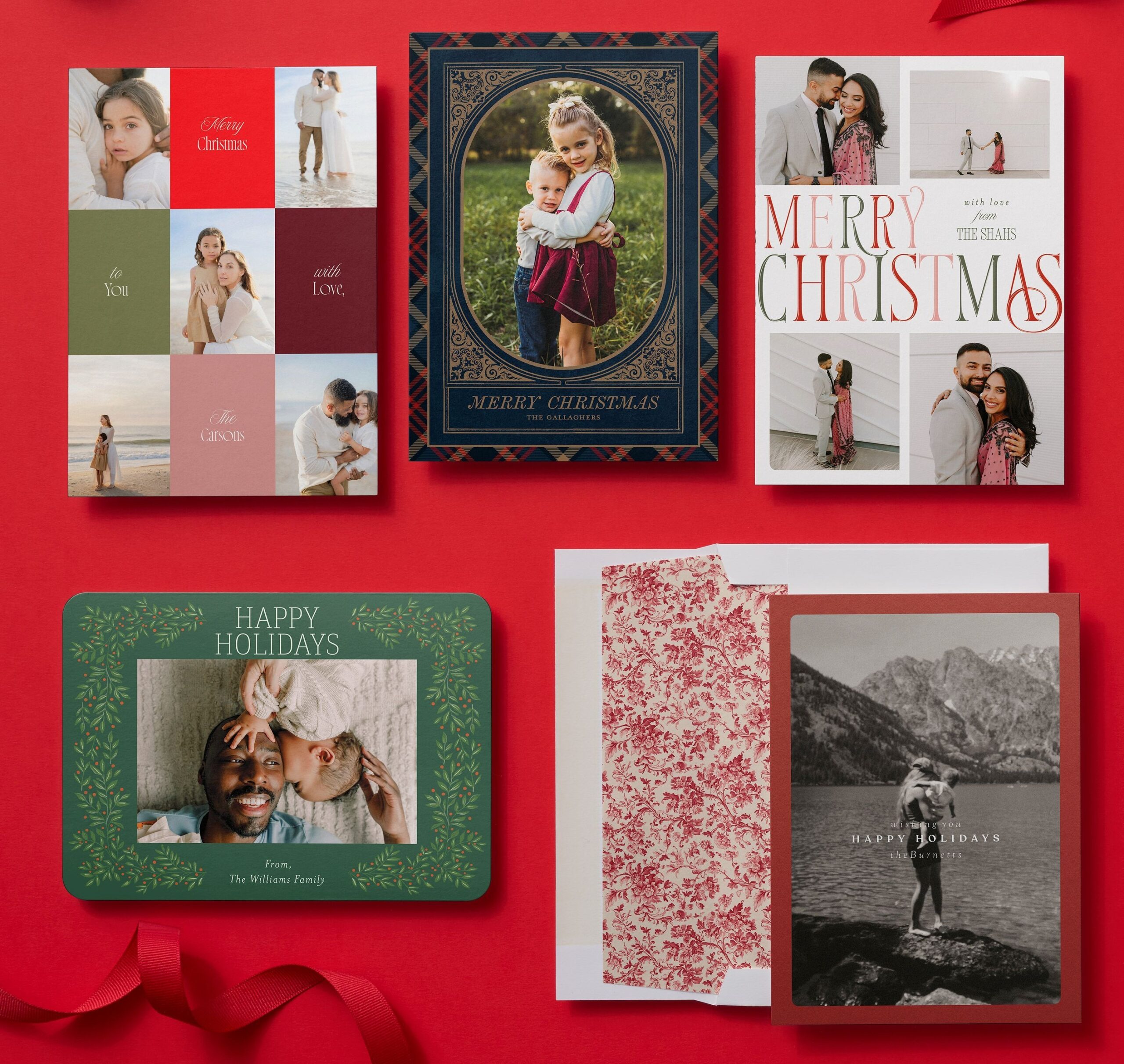
Step 4: Add Your Photos and Personalize Your Christmas Card
Add the phone photos you uploaded and start making your Christmas card your own. Personalize it with your favorite pictures, family name, Christmas greeting, colors, and other design details to create a card that feels like you.
Your message can be as simple as “Merry Christmas” with your family name, or you can write a more personal greeting for everyone on your list. If you’re creating a multi-photo card, try different combinations of pictures to find the ones that look best together.
Don’t rule out a favorite photo just because it isn’t quite perfect. Shutterfly’s AI photo-editing tools can help you open closed eyes or expand an image to better fit your card, and you can add filters to give your photo the look you want. So if everyone looks great except for one blink, or you love a photo but wish there were a little more room around it, you may still be able to use it.
Whether you’re sharing one favorite family photo or a collection of moments from the year, choose the pictures you’ll be excited for friends and family to see when they open your card.
Step 5: Review Your Christmas Cards and Place Your Order
Before ordering, take a final look at your Christmas card from front to back. Make sure you’re happy with how each photo is positioned and check names, dates, greetings, and other text for spelling errors.
Pay special attention to your photos. Make sure important faces and details appear where you want them and that you’ve selected the right picture if several similar versions were sitting in your camera roll.
Once everything looks right, you’re ready to order your Christmas cards and send some holiday cheer to the people you love.
Can You Make Christmas Cards From Phone Photos on a Computer?
Yes. Your photos can be stored on your phone even if you’d rather design your Christmas cards on a computer.
From the Shutterfly website, choose Phone while uploading photos and scan the QR code with your device. You can then select photos on your phone and upload them directly to your Shutterfly account.
Another option is to upload your pictures through the Shutterfly app first. Once the photos are saved to your Shutterfly account, you can access them when working in your account on your computer.
This way, you can take advantage of having your photos readily available on your phone without having to make your entire Christmas card from your phone.
Tips for Choosing Phone Photos for Christmas Cards
Chances are, you have hundreds or even thousands of pictures on your phone. You don’t need to sort through every one to find something worthy of your Christmas card. A few simple considerations can help narrow your choices.
Choose a photo that feels like you. Your Christmas card doesn’t have to feature a formal family portrait. A vacation photo, backyard snapshot, or favorite candid moment can be just as meaningful.
Look for a picture where everyone is easy to see. If several people are in the photo, check that faces are clearly visible and aren’t too close to the edges.
Consider your card design. A vertical family photo may work naturally with a portrait layout, while a wide group shot may be better suited to a landscape design.
Try a multi-photo card if you can’t choose just one. A collage-style Christmas card can bring together several moments and give friends and family a glimpse at what your year looked like.
Most importantly, pick pictures you genuinely enjoy. Christmas cards give you a chance to bring favorite photos out of your camera roll and share them with the people who matter to you.
Frequently Asked Questions
Can I make Christmas cards directly from my phone?
Yes. You can upload pictures from your device using the Shutterfly app and use your favorite photos for a Shutterfly project. Photos uploaded to your Shutterfly account can also be accessed when you sign in on a computer if you decide you’d rather continue creating there.
Can I use iPhone photos for Christmas cards?
Yes. You can upload pictures from an iPhone to your Shutterfly account and use them in your project. You can upload through the Shutterfly app, or choose Phone when uploading from the Shutterfly website and scan the provided QR code with your phone.
Can I use Android photos for Christmas cards?
Yes. Photos from an Android device can be uploaded to your Shutterfly account for use in a project. Shutterfly supports uploading photos from a mobile device through the Shutterfly app as well as the QR-code phone upload process available on the website.
Can I upload photos from my phone and make my Christmas cards on a computer?
Yes. If you prefer designing on a larger screen, upload the pictures from your phone to your Shutterfly account first, then access those uploaded photos from your account on your computer. You can also start on the Shutterfly website, select Phone as your upload source, scan the QR code, and choose photos directly from your phone.
Can I use Google Photos for Christmas cards?
Shutterfly lets you import pictures directly from Google Photos. Start the upload process, select Google Photos, sign in to your Google account if prompted, choose the pictures you want, and upload them to your Shutterfly account.
How many photos should I put on a Christmas card?
There’s no single right number. If you have one standout family photo, let it be the focus of your card. If you want to share several highlights from your year, choose a multi-photo Christmas card that gives each memory its own space.
What kind of phone photo is best for a Christmas card?
Choose a photo that you love sharing and that works well with your card design. Family portraits are always a natural fit, but vacation pictures, new baby photos, engagement pictures, pet photos, and candid family moments can all make your Christmas card feel personal.
Turn Your Favorite Phone Photos Into Christmas Cards
Your favorite photos don’t have to stay buried in your camera roll. With Shutterfly, you can upload pictures from your phone, choose a Christmas card design that fits your photos, and create a holiday greeting that feels personal to your family.
Whether you make your Christmas cards using your phone or prefer uploading your pictures first and finishing the design on your computer, your favorite moments from the year can become something tangible to share with everyone on your Christmas card list.
Additional Resources:
