





If you purchased digital photos from Lifetouch, you can access eligible images through your Shutterfly account. Whether you’re looking for school pictures, portraits, or photos from another Lifetouch session, you can claim your images, find them in your Shutterfly account, and download copies to your device.
Below, we’ll walk through how to access your Lifetouch photos and what to check if they aren’t showing up where you expect.
How to Claim Lifetouch Photos on Shutterfly
To claim Lifetouch photos from a paper form order, sign in to the Shutterfly account where you want your photos saved. Then enter the Portrait ID and Access Code included with your Lifetouch order and follow the steps to verify and link your account. Once your photos are ready and successfully claimed, they’ll be available through Shutterfly.
If you ordered online, your digital images can transfer to Shutterfly once your Lifetouch account is verified and linked. Future eligible purchases made through that linked Lifetouch account can then transfer automatically when the images are ready.
Where to Find Your Lifetouch Portrait ID and Access Code
Your Portrait ID and Access Code are printed on the package insert that comes with your Lifetouch photos. You can use both to claim your Lifetouch photos on Shutterfly.
How to Find Your Lifetouch Photos on Shutterfly
Already claimed your photos? Here’s where to find them.
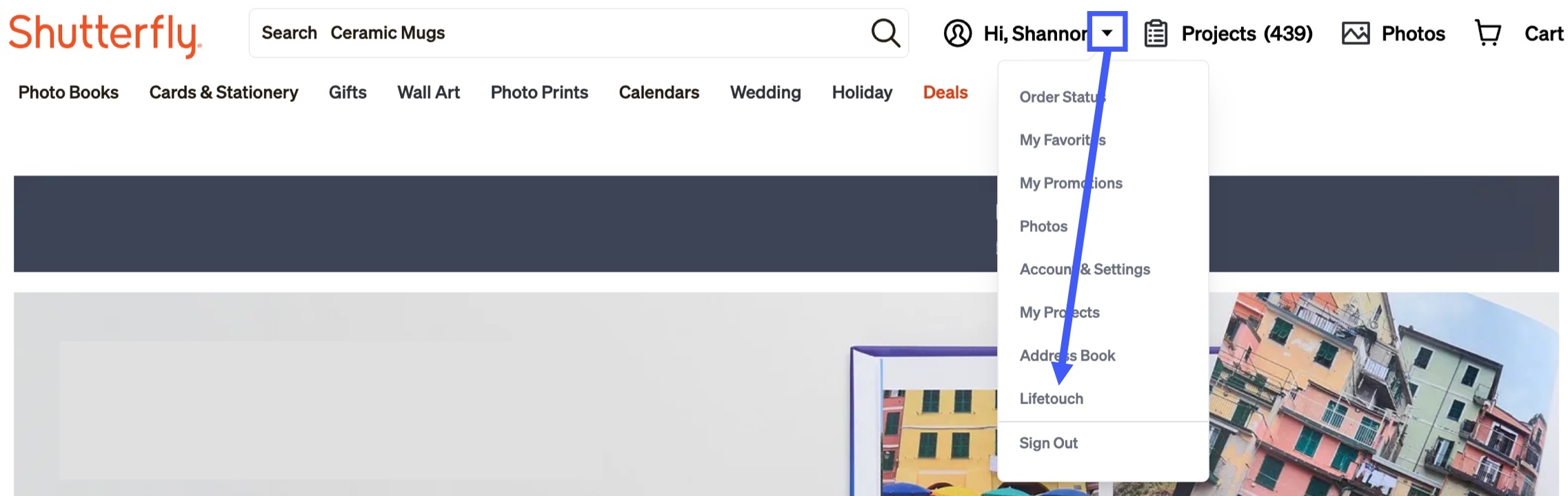
On the Shutterfly website:
- Sign in to your Shutterfly account.
- Open the dropdown next to your name.
- Select Lifetouch.
- Open your Lifetouch folder to see your available images.
In the Shutterfly app:
- Tap Photos.
- Tap Albums.
- Open the Lifetouch folder.
Your Lifetouch photos will appear after they’ve been successfully claimed and your accounts are linked.
What to Do if Your Lifetouch Photos Aren’t Showing Up
If you’ve purchased or claimed your Lifetouch digital photos but can’t find them in Shutterfly, a few quick checks can help narrow down what’s happening.
Make Sure You’re Signed In to the Right Shutterfly Account
Your Lifetouch and Shutterfly accounts don’t need to use the same email address. You can also link multiple Lifetouch accounts to one Shutterfly account, although each individual Lifetouch account can only be linked to one Shutterfly account.
If you have more than one Shutterfly account, check that you’re signed in to the one connected to your Lifetouch account.
If your Lifetouch account was accidentally linked to the wrong Shutterfly account, Shutterfly Customer Care can help with delinking the accounts.
Check the Email Address Used for Your Lifetouch Order
If you see a message saying no images were found, make sure you’re using the email address associated with your Lifetouch purchase. Shutterfly may not be able to find your images if the email entered doesn’t match the one connected to the order.
If you make another Lifetouch purchase using a different email address, that email will also need to be verified and linked before its eligible images can transfer to your Shutterfly account.
Check for Your Verification Email
Account verification is part of connecting Lifetouch and Shutterfly. Verification emails typically arrive within one to two hours. If yours hasn’t arrived, check your spam or promotions folder and use Resend Email to request another.
Verification links expire after 24 hours. If yours has expired, you can request a new verification email and continue the linking process.
Give Your Photos Time to Arrive
Digital photos may not appear immediately after Picture Day, a portrait session, or an order. Timing varies depending on the type of Lifetouch photography and when the order was placed.
For Lifetouch School K–11 orders, for example, digital delivery can take about three to four weeks. Other Lifetouch photography services may have shorter delivery times.
If your photos are still within the expected delivery window, they may simply not be ready to transfer to Shutterfly yet.
How to Download Lifetouch Photos From Shutterfly
If you’d like to save a copy of your Lifetouch photos outside of Shutterfly, you can download them from the Shutterfly website or mobile app.
Download Lifetouch Photos From the Shutterfly Website
For a full-resolution download:
- Sign in to Shutterfly and open your Lifetouch photos.
- Select the photo you want to save.
- Click Download Selected.
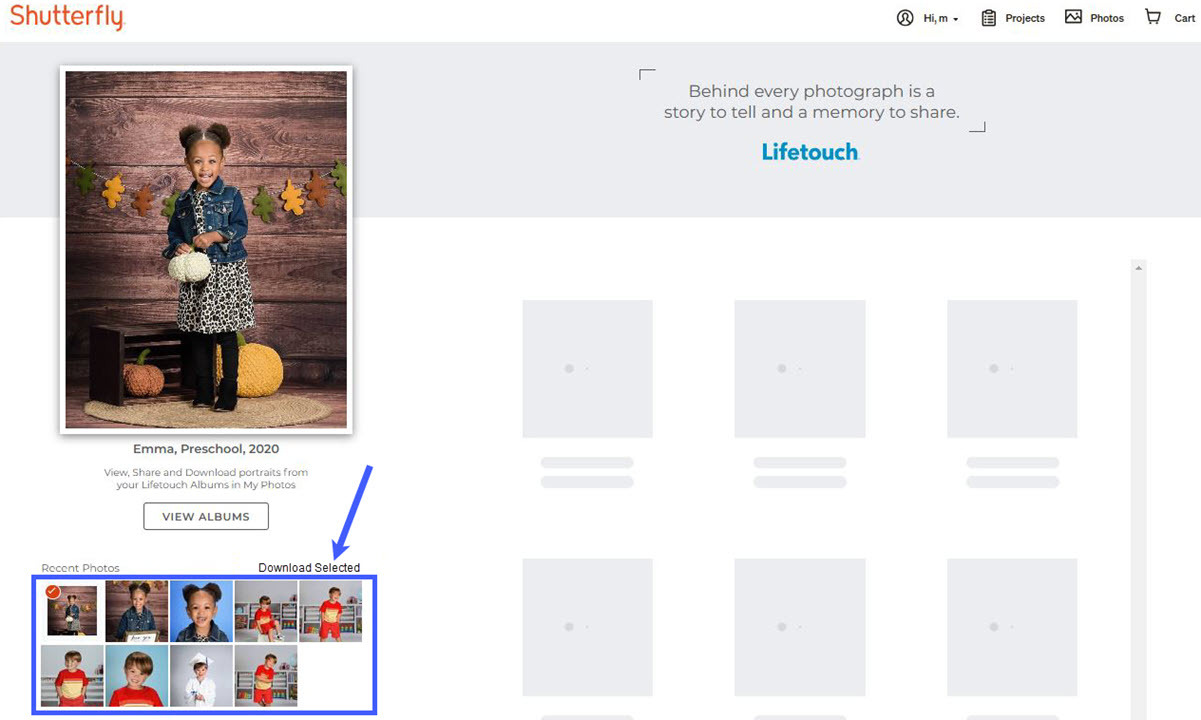
The image will download in full resolution, making the website the better option when you want the highest-resolution version of your Lifetouch photo.
Download Lifetouch Photos From the Shutterfly App
In the Shutterfly app:
- Tap Photos.
- Tap Albums.
- Open your Lifetouch folder and album.
- Select a photo.
- Tap the share arrow to save the image to your device.
Keep in mind that Lifetouch photos downloaded through the Shutterfly mobile app are not high resolution. For a full-resolution copy, download the image from the Shutterfly website instead.
How to Download Lifetouch Photos From an Archived Shutterfly Account
You can still download your Lifetouch photos if the images in your Shutterfly account have been archived.
Sign in to Shutterfly, open Lifetouch from the menu beside your name, and select the photo you want to download. With archived photos, each image must be downloaded individually.
Make More With Your Lifetouch Photos
Once your Lifetouch photos are in Shutterfly, they can become part of the projects you make with the rest of your favorite photos. School portraits can find a home in a photo book that follows the kids from year to year, while photo prints make it easy to share the latest Picture Day smile with grandparents and family.
You can also add Lifetouch photos to cards and personalized gifts, giving those professional portraits more ways to be enjoyed beyond the original photo package.
Additional Resources:
