





Choosing the right size for your photo book is an important part of bringing your memories together. At Shutterfly, you select your preferred size when you first create a photo book, but you can change it later if you decide another format works better. You don’t have to start your project over to switch sizes, although changing the dimensions may affect your photos, text, and layouts. Here’s how to resize your Shutterfly photo book and what to check before making the change.
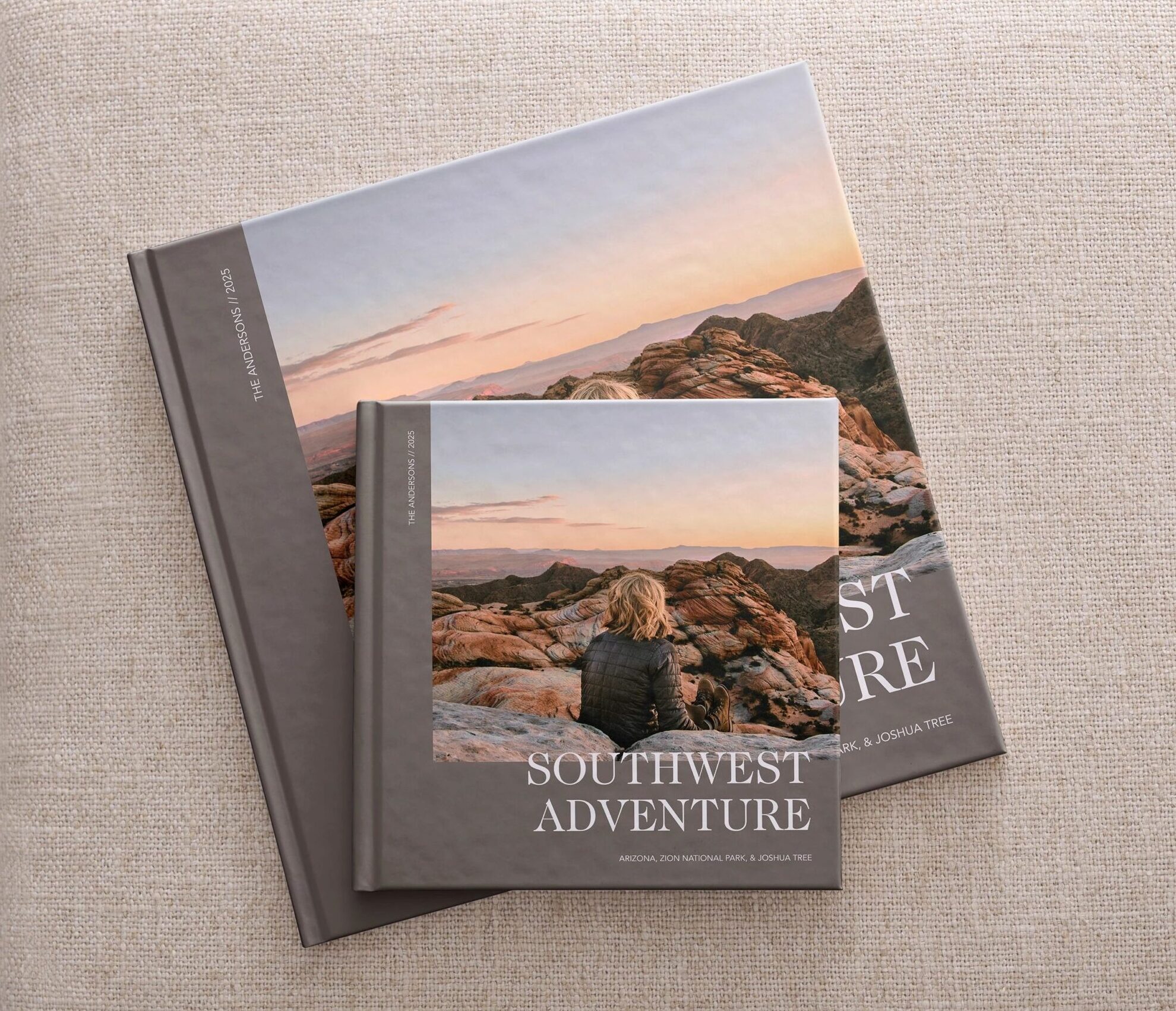
How to Change the Size of a Shutterfly Photo Book
You can change your photo book size directly in the Shutterfly editor, even after you’ve started adding photos and customizing pages. Start by signing in to your account and opening the photo book you want to resize, then follow these steps:
- Open your book options: Click the dropdown arrow next to your photo book’s size, page count, and price at the top of the editor. Then select Change Options at the bottom of the pricing summary.
- Choose a new size: The Book Options window will open with your current size selected. Choose another available size to see how it affects your book’s price, then click Apply Changes.
- Review and confirm your changes: A warning will explain how resizing may affect your photos, text, layouts, and pricing. Review the information, select Save a copy if you’d like to preserve your original version, then click Change Size to confirm.
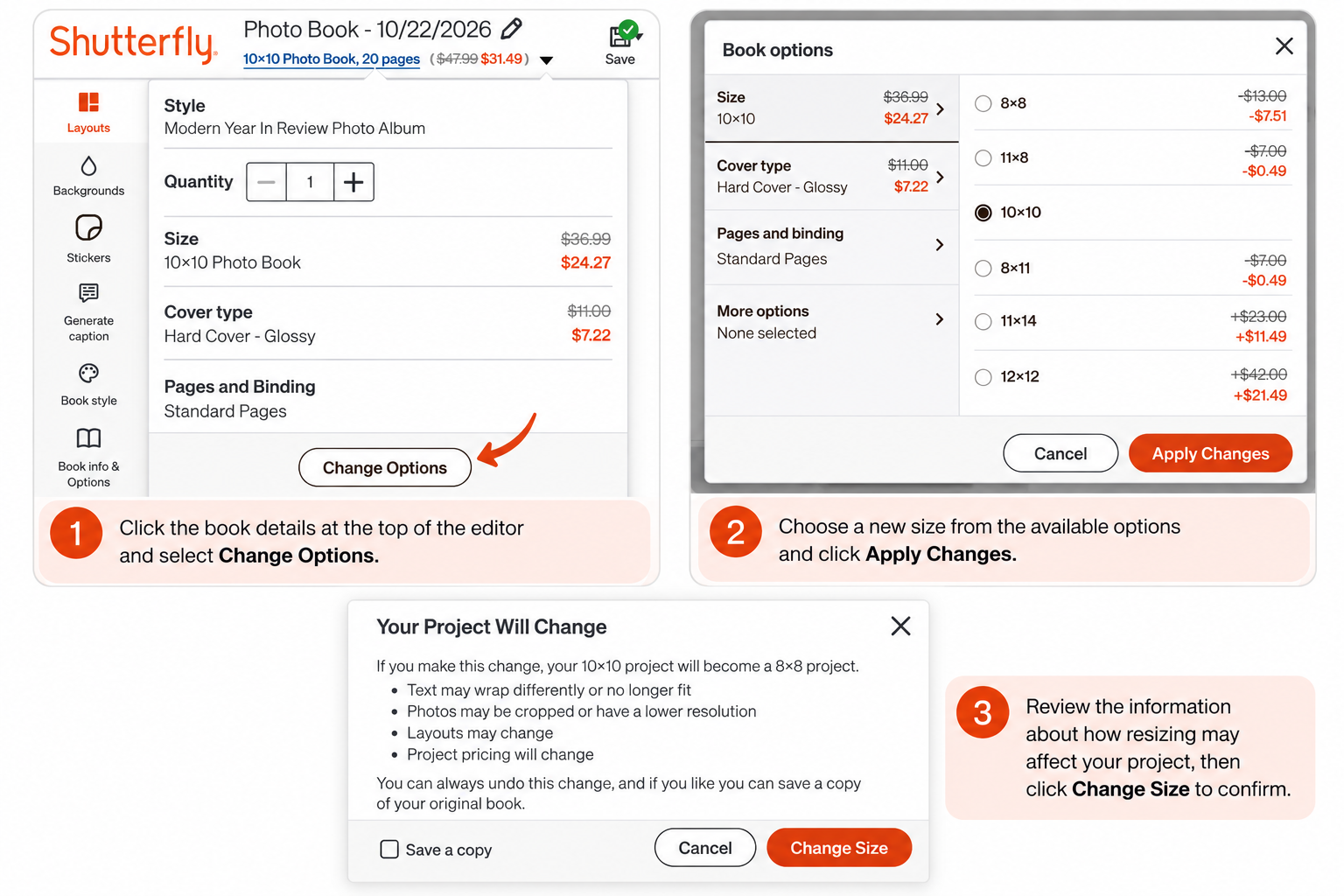
You can also change your book size by selecting Book Info & Options in the editor’s left sidebar, then clicking Change Options. This opens the same Book Options window, where you can select a different size and confirm your changes.
What Happens When You Change Your Photo Book Size?
Changing your Shutterfly photo book size updates the dimensions of your existing project without requiring you to create a new book from scratch. However, because your photos and text were originally arranged for a different page size, some elements may need adjustments.
When you change sizes, the editor will alert you to several possible changes:
- Text may wrap differently: Captions, titles, and other text may move to new lines or no longer fit within their original text boxes.
- Photos may be cropped: Images may be displayed differently within their layouts or have a lower resolution.
- Page layouts may change: Some arrangements may need to be adjusted to fit the new dimensions.
- Pricing will change: Switching to a different book size can increase or decrease your total price.
After resizing, review each page to make sure your photos, text, and layouts still look the way you want. Pay particular attention to images near the edges of pages and text that may have shifted.
Can You Change Your Photo Book Size Without Losing Your Work?
Yes. You can resize an existing Shutterfly photo book without starting over. Your project will be converted to the new size, although you may need to make adjustments to individual pages.
Before confirming the change, Shutterfly gives you the option to Save a copy of your original book. Selecting this option lets you keep a separate version of your original project while changing the size of the current one.
You can also undo a size change if you decide you prefer your previous format. Saving a copy is especially helpful if you’ve already spent time arranging photos, adding captions, and customizing layouts.
What Photo Book Sizes Does Shutterfly Offer?
Shutterfly offers several photo book sizes to fit different types of memories, from smaller albums to larger books with more room for photos.
Available photo book sizes include:
- 8×8: A compact square format for everyday memories, family photos, and smaller collections.
- 8×11: A portrait format that works well for vertical photos and albums with captions.
- 10×10: A larger square format with room for full-page photos and collages.
- 11×8: A landscape format that’s a good choice for travel photography, scenery, and wide images.
- 11×14: A large portrait format for wedding photos, family portraits, and special occasions.
- 12×12: Our largest square photo book size, with plenty of space for detailed layouts and larger photo collections.
You can compare available sizes and prices when choosing your book or through Book Options in the editor. Some sizes and options may vary by photo book style.
Does Changing Your Photo Book Size Affect the Price?
Yes. Different photo book sizes have different prices, so switching sizes can change your total cost. Larger books generally cost more than smaller formats, although the final price also depends on your cover, page type, upgrades, and any applicable promotions.
You can preview the price difference before confirming a size change. In the Book Options window, Shutterfly displays the price adjustment for each available size, making it easy to compare your choices.
For additional savings, check our current photo book deals before placing your order.
Frequently Asked Questions About Changing Photo Book Sizes
Can I change my Shutterfly photo book size after I’ve started designing?
Yes. You can change your photo book size after you’ve started designing by opening your project, selecting Change Options, and choosing a different size. Your existing project will be converted to the new dimensions.
Will I lose my photos if I change my photo book size?
Changing your photo book size doesn’t require you to start over or reupload all your photos. However, some images may be cropped differently or need adjustments after resizing. Review your pages before ordering.
Can I change my photo book from square to landscape?
Yes. You can switch between available square, portrait, and landscape sizes using the Book Options menu. Keep in mind that changing the shape of your book may affect how your photos and layouts appear.
Can I undo a photo book size change?
Yes. Shutterfly allows you to undo a size change. You can also select Save a copy when confirming the change to preserve a separate version of your original photo book.
Can I change my photo book size after placing an order?
You can change the size of a photo book while editing your project before ordering. Once an order has been placed, changes may no longer be possible. Review your book’s size and layout carefully before checkout.
Choose the Right Size for Your Photo Book
Your photo book should fit the memories you want to preserve, and sometimes that means choosing a different size after you’ve started designing. With Shutterfly’s photo book editor, you can explore different dimensions, compare pricing, and resize your existing project without starting from scratch. Browse our custom photo books to find a size that brings your favorite moments together.
Additional Resources:
